

A good Android side panel should save time without becoming another complicated screen to manage. This ranking compares ten current choices using practical usefulness, simplicity, privacy, customization, price, and device compatibility. It focuses on what each product is designed to do, not download counts alone.
Prices, availability, and store declarations can change. Check the linked official listing before installing. Features that draw over other apps or provide navigation shortcuts may require overlay or accessibility permissions; review those permissions and enable only what you intend to use.
1. S Panel: best practical free side panel
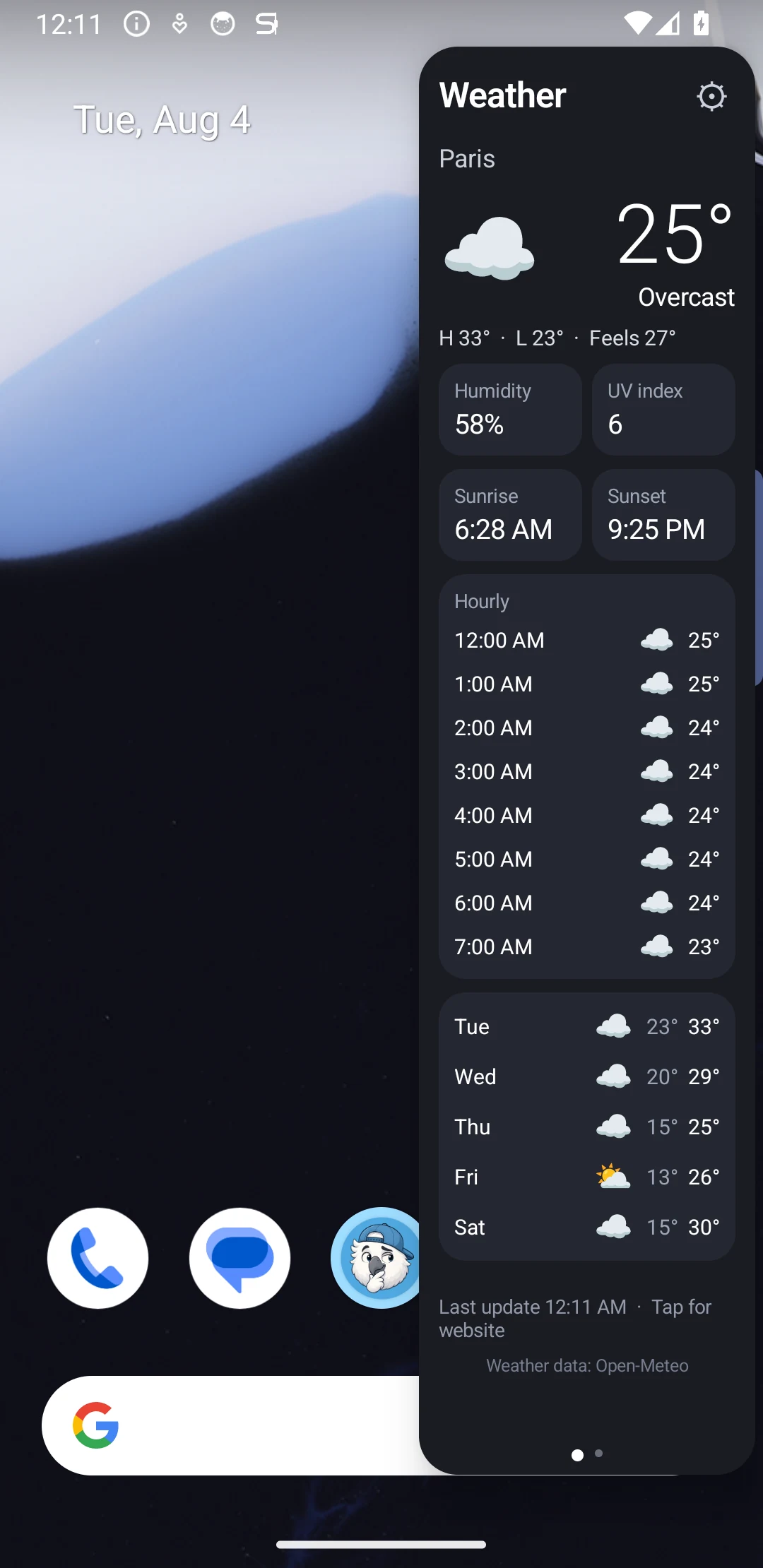
Real S Panel weather view from the published Android app.
Visit the official S Panel pageS Panel ranks first for people who want useful information and clipboard tools rather than another app launcher. A single edge swipe opens current weather, hourly conditions, a five-day forecast, sunrise and sunset, or a practical clipboard over the app already in use. Text and images can be saved, important clips can be locked, and clipboard content stays encrypted in private app storage on the device.
It is free to install, and its current Google Play listing does not show advertising or in-app-purchase labels. The handle can sit on the left, right, or both sides, with controls for position, size, color, transparency, and vibration. That combination makes S Panel the most practical free choice in this ranking: it solves two recurring needs directly and keeps setup focused.
S Panel is proprietary software from Jenius Tech SRL; it is not open source. It supports Android 12 and newer, so someone using an older device should choose a compatible alternative.
2. Panels: best for deep launcher customization
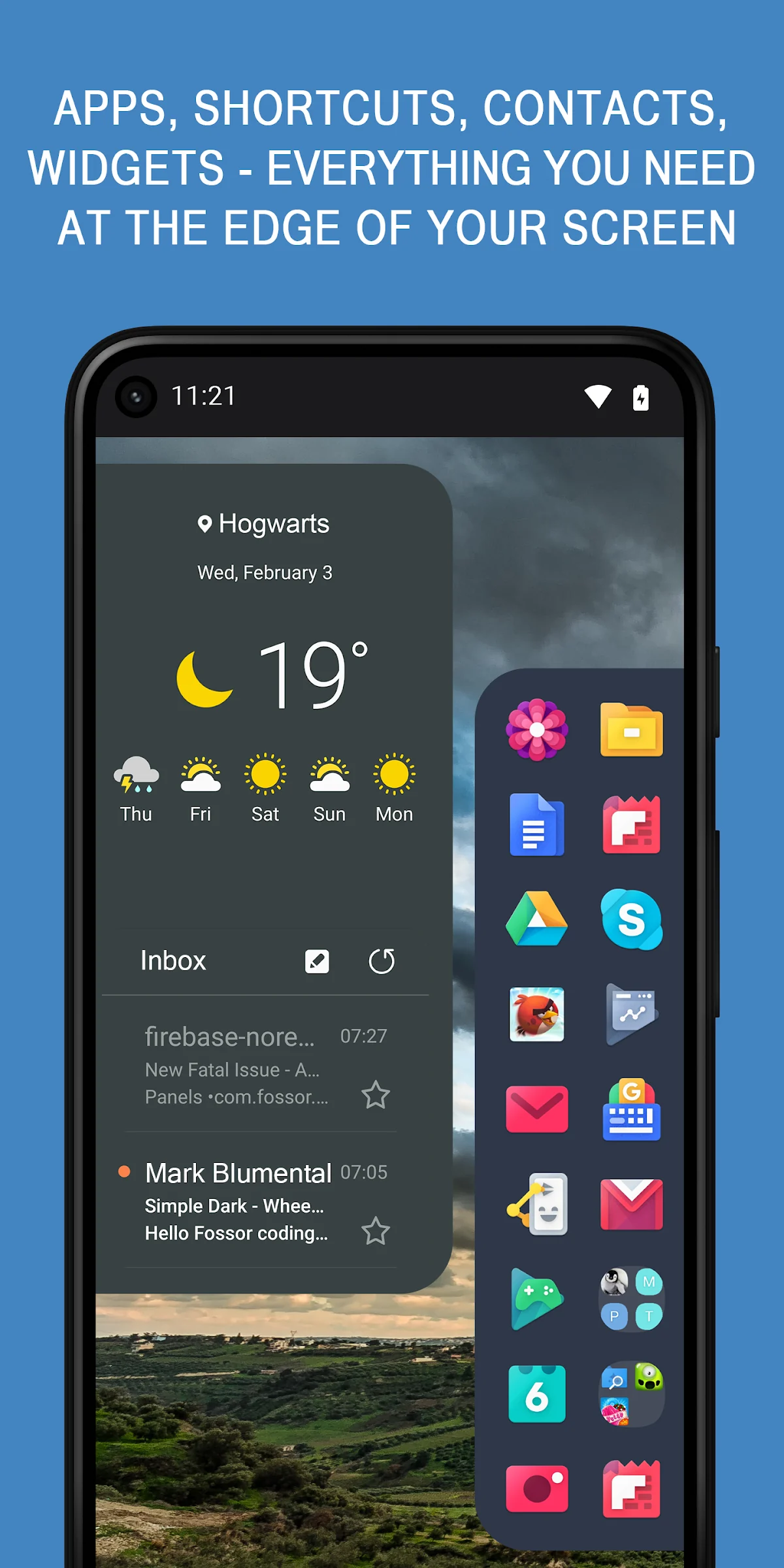
Panels interface shown in its official Google Play listing.
Visit the official Panels pagePanels is the strongest alternative for people who primarily want apps, shortcuts, contacts, folders, widgets, and accessibility actions at the edge. Its official listing emphasizes extensive control over rows, columns, colors, icon sizes, gestures, and panel positions.
Choose Panels when a highly configurable shortcut launcher matters more than built-in weather and clipboard tools. Its Google Play listing shows advertising and in-app purchases, while S Panel keeps its practical weather-and-clipboard experience free and more focused.
3. Everywhere Launcher: best for advanced triggers
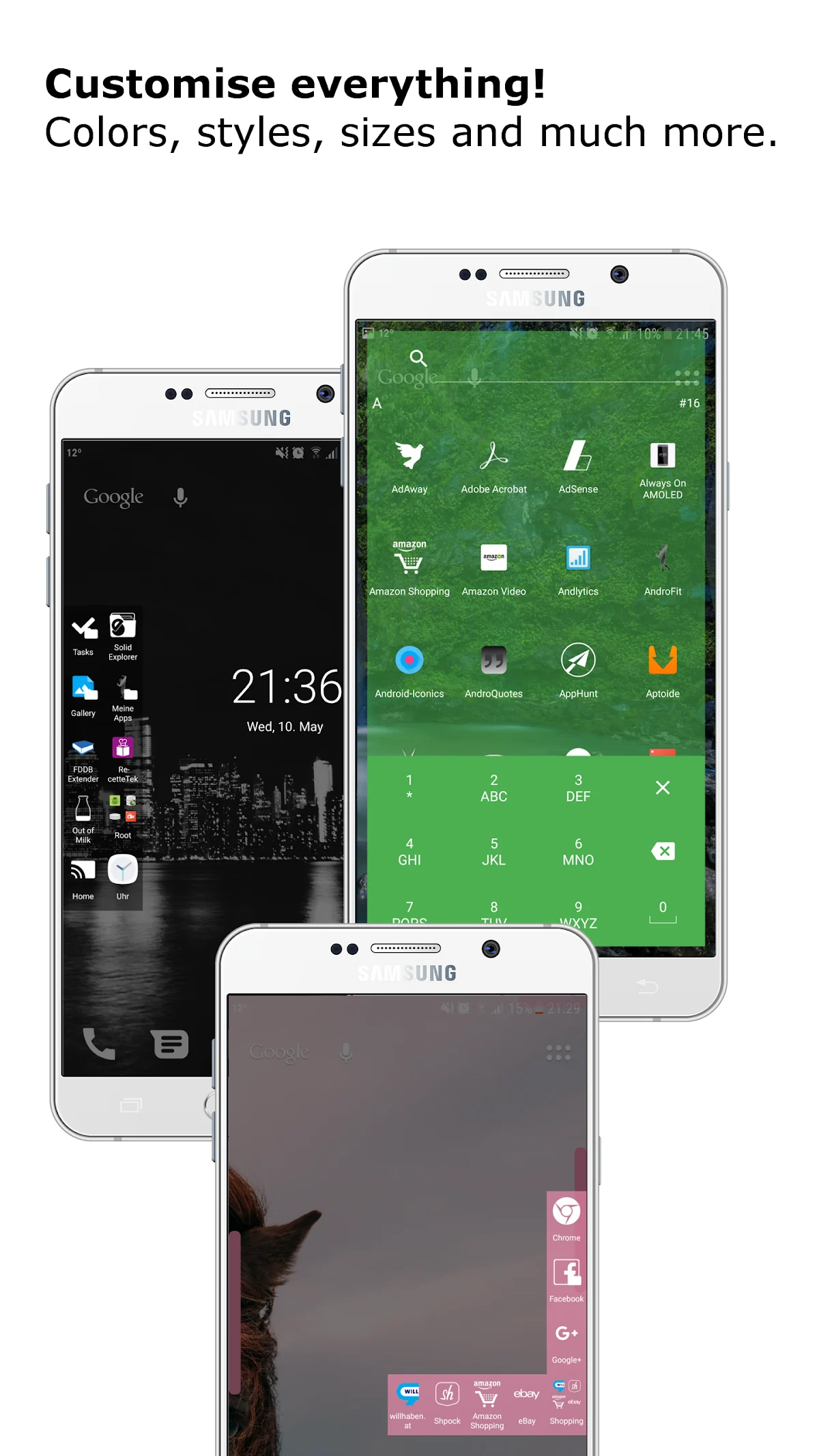
Everywhere Launcher shown in its official Google Play listing.
Visit the official Everywhere Launcher pageEverywhere Launcher supports multiple edge regions, gesture-specific actions, folders, widgets, contacts, recent apps, Tasker integration, and detailed appearance controls. Power users can build highly specific swipe behavior.
The official listing shows its latest update as September 2021, so verify behavior on a current Android version before depending on it. It suits elaborate launcher automation; S Panel is easier when the goal is simply reaching weather and private clipboard content.
4. Swiftly Switch: best for one-handed app switching
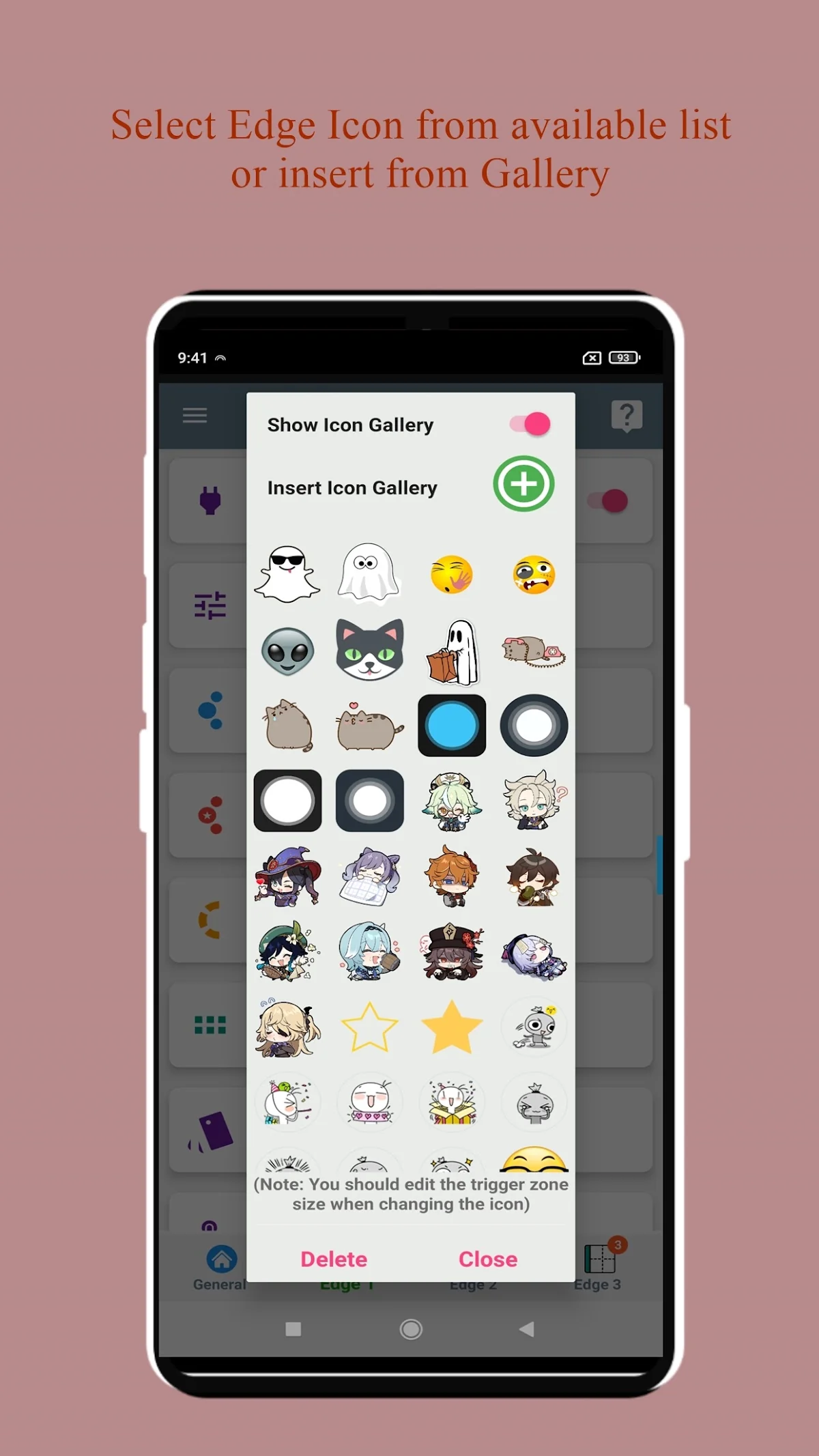
Swiftly Switch shown in its official Google Play listing.
Visit the official Swiftly Switch pageSwiftly Switch combines recent apps, circular favorites, grid favorites, quick actions, folders, and navigation shortcuts. It is particularly useful for people who want to move between apps and system actions with one hand.
The listing describes the app as free to try, with Pro features such as a second edge and expanded grid controls. Choose it for gesture-heavy multitasking; choose S Panel for a calmer panel centered on weather and clipboard needs.
5. Edge Screen - Edge Gesture: best for many utility panels
Panels interface shown in its official Google Play listing.
Visit the official Panels pageEdge Screen - Edge Gesture combines app and contact shortcuts with calculator, world clock, browser links, alarms, calendar events, notifications, files, and notes. This breadth can suit someone who wants many compact tools in one edge interface.
Its current listing includes ads and in-app purchases and describes optional permissions for contacts, calls, notifications, and accessibility actions. S Panel asks users to manage fewer kinds of tools and keeps its value proposition more direct.
6. Side Bar - Edge Screen: best for a familiar app grid
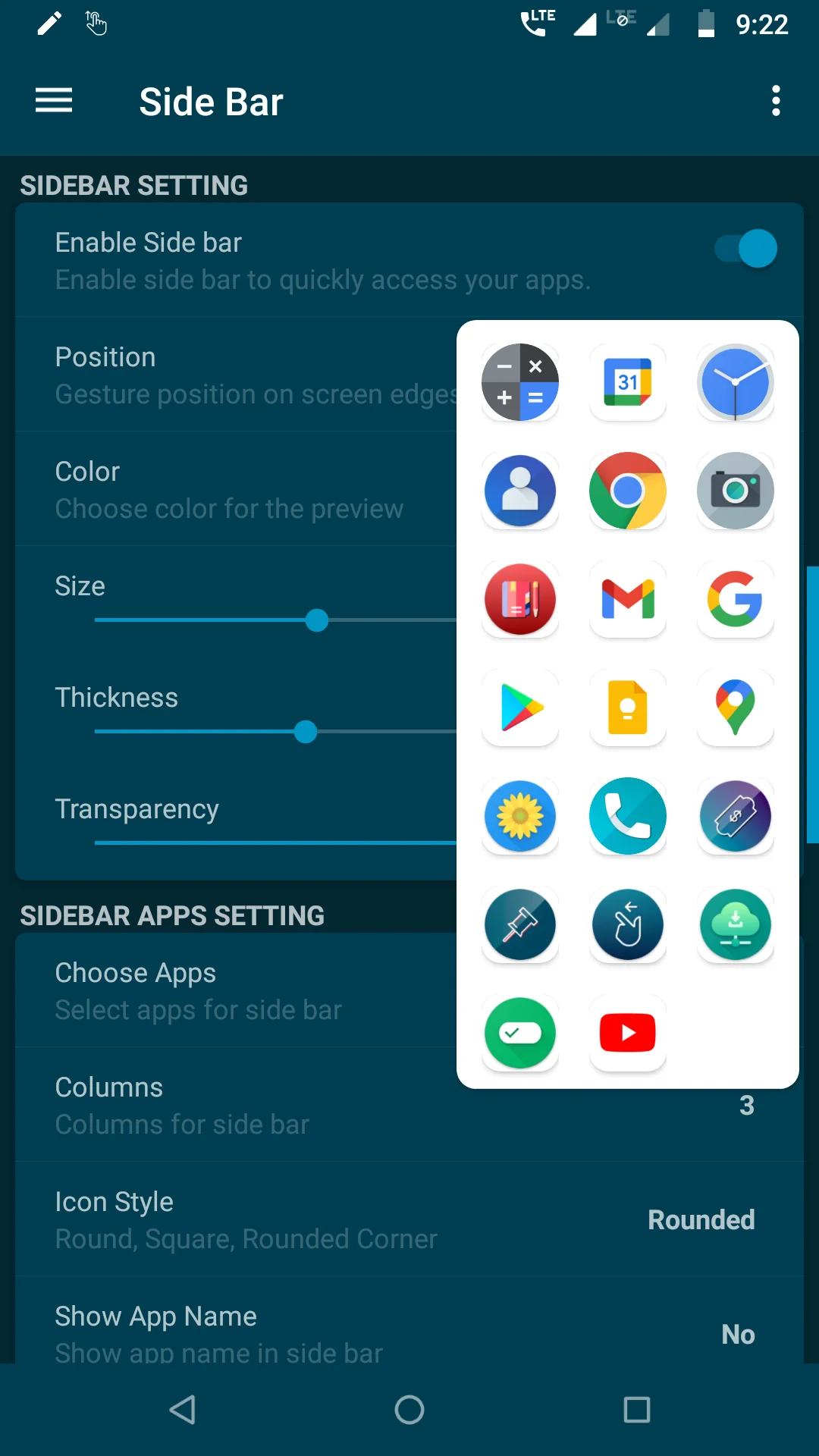
Side Bar - Edge Screen shown in its official Google Play listing.
Visit the official Side Bar - Edge Screen pageSide Bar - Edge Screen concentrates on opening favorite apps from anywhere. It supports multiple columns and appearance controls for colors, transparency, and icon style.
It is a straightforward choice for an app-shortcut drawer. S Panel ranks higher for practical daily information because weather and the private clipboard are usable immediately without first building a shortcut collection.
7. JINA Drawer: best for organizing a large app collection
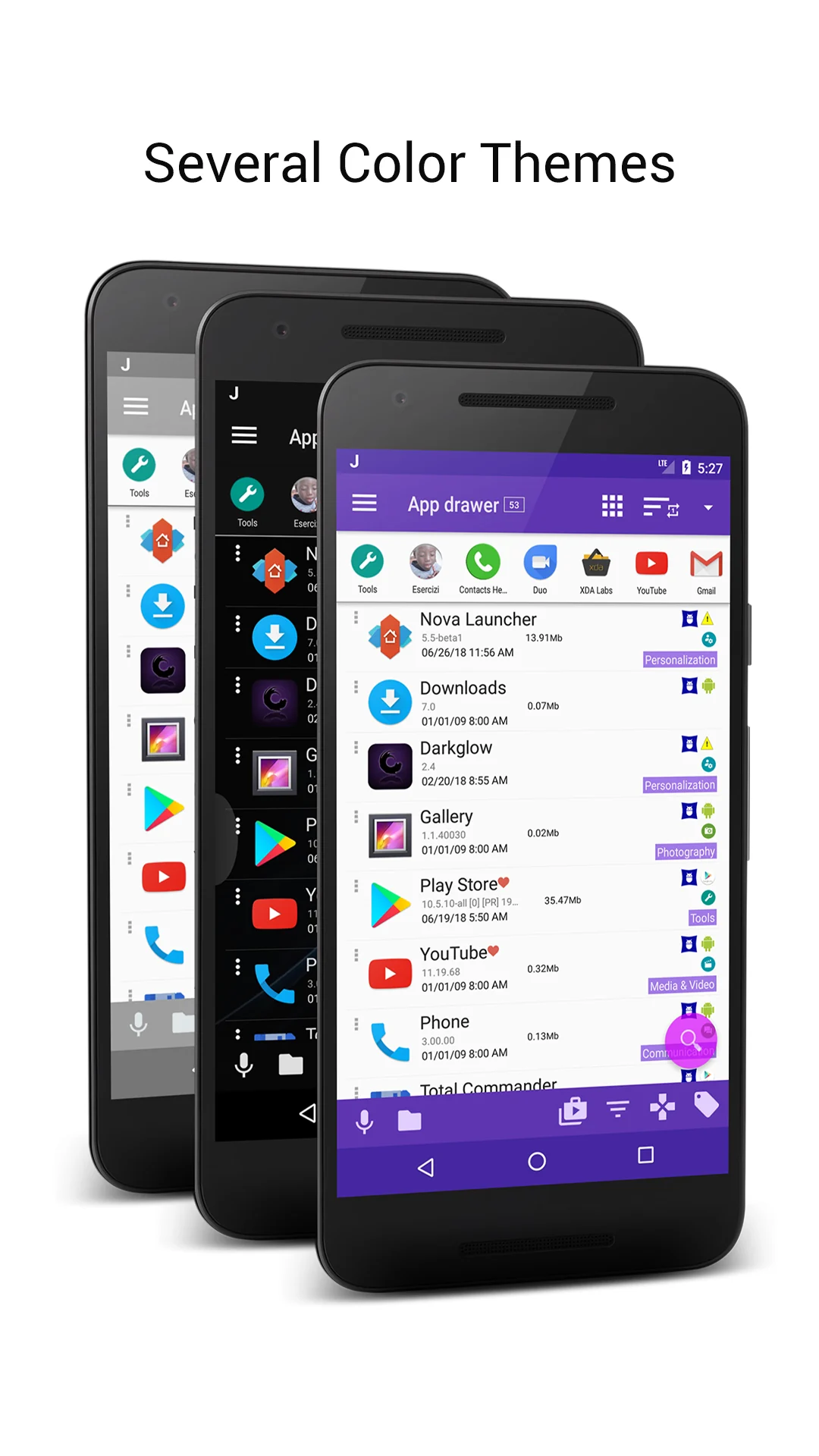
JINA Drawer shown in its official Google Play listing.
Visit the official JINA Drawer pageJINA Drawer is broader than a simple side panel. It combines an app drawer, automatic categories, tags, folders, favorites, search, app information, and sidebars available over other apps.
Choose JINA when organizing hundreds of installed apps is the main problem. Its depth takes more setup than S Panel, whose smaller feature set is intentional and easier to understand quickly.
8. Edge Sidebar Launcher: best for a lightweight shortcut drawer
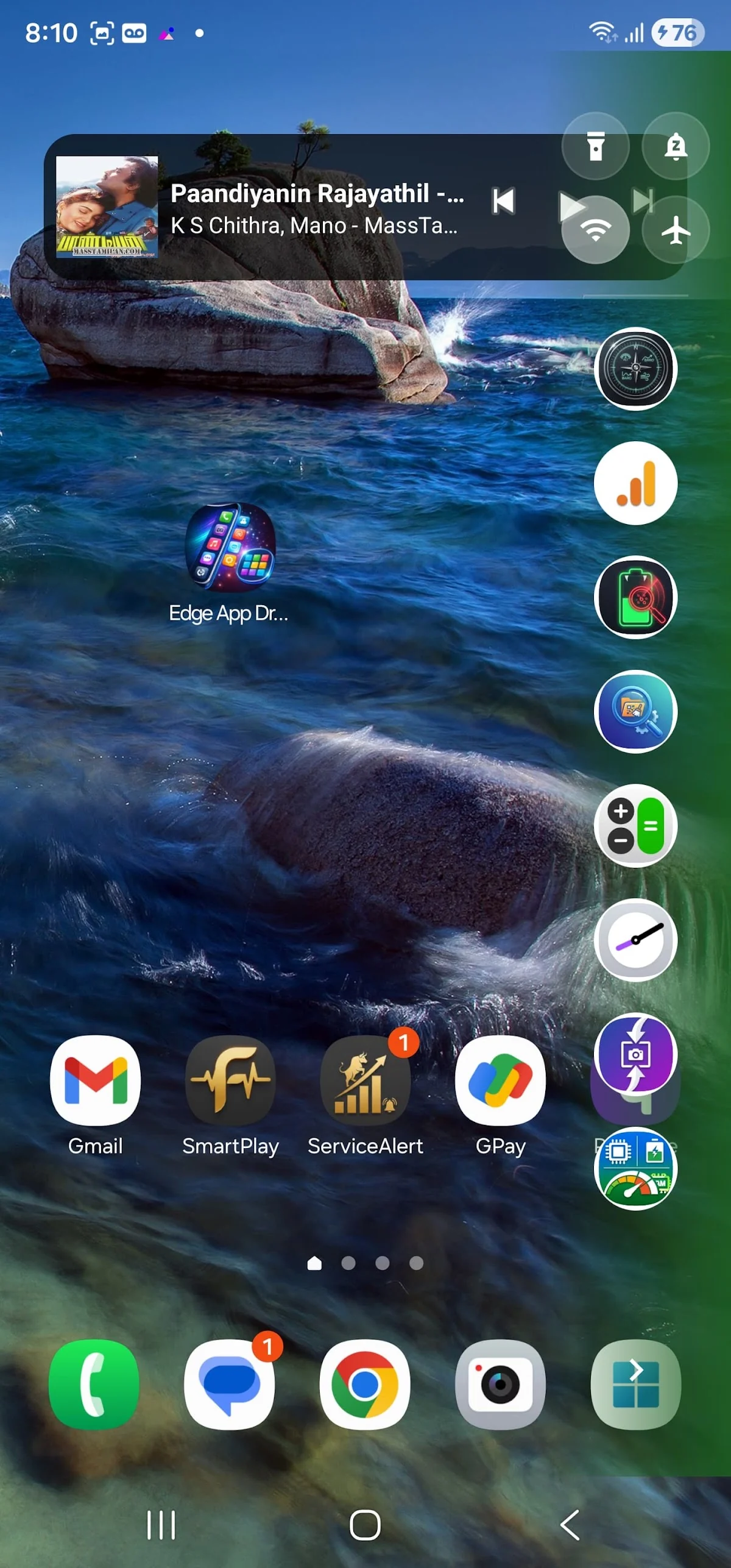
Edge Sidebar Launcher shown in its official Google Play listing.
Visit the official Edge Sidebar Launcher pageEdge Sidebar Launcher offers favorites, recent apps, contacts, quick toggles, left or right handles, visual customization, and fullscreen auto-hide. It is easy to recognize as a conventional floating app drawer.
The listing shows advertising. It can be a reasonable shortcut-focused choice, while S Panel remains stronger for users seeking practical tools and private saved content rather than another route to installed apps.
9. Edge Screen Assistive Touch: best for virtual navigation actions
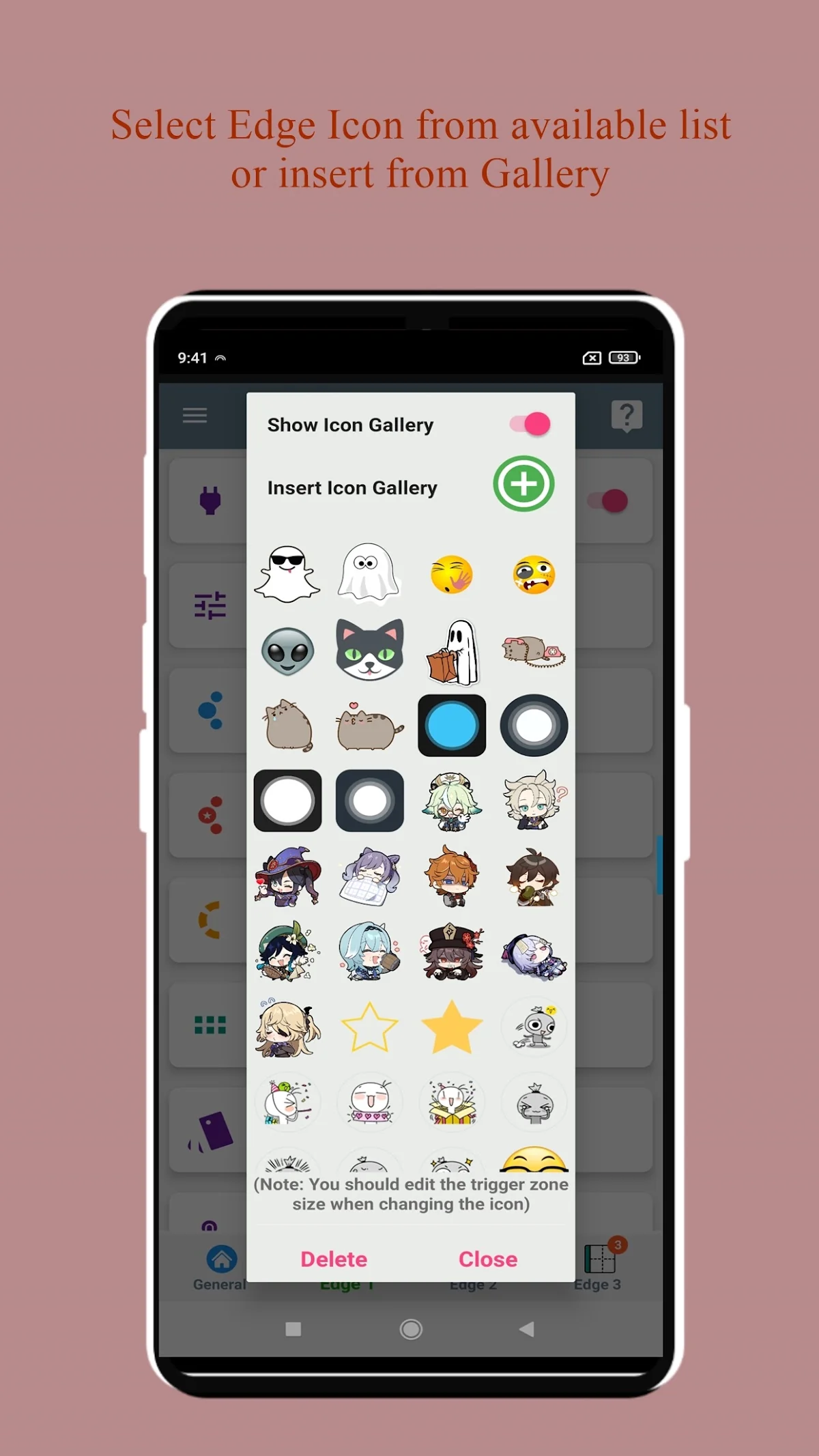
Edge Screen Assistive Touch shown in its official Google Play listing.
Visit the official Edge Screen Assistive Touch pageEdge Screen Assistive Touch combines favorites and recent apps with quick actions, grids, folders, music, calculator, calendar, and virtual navigation controls. Accessibility support enables actions such as Home, Back, notifications, split screen, lock, and screenshots.
That makes it capable but permission-heavy. Choose it when virtual keys and navigation actions are essential. S Panel is the simpler option when weather and clipboard access are the actual priorities.
10. Edge Apps, Multi-window: best for compatible Samsung devices
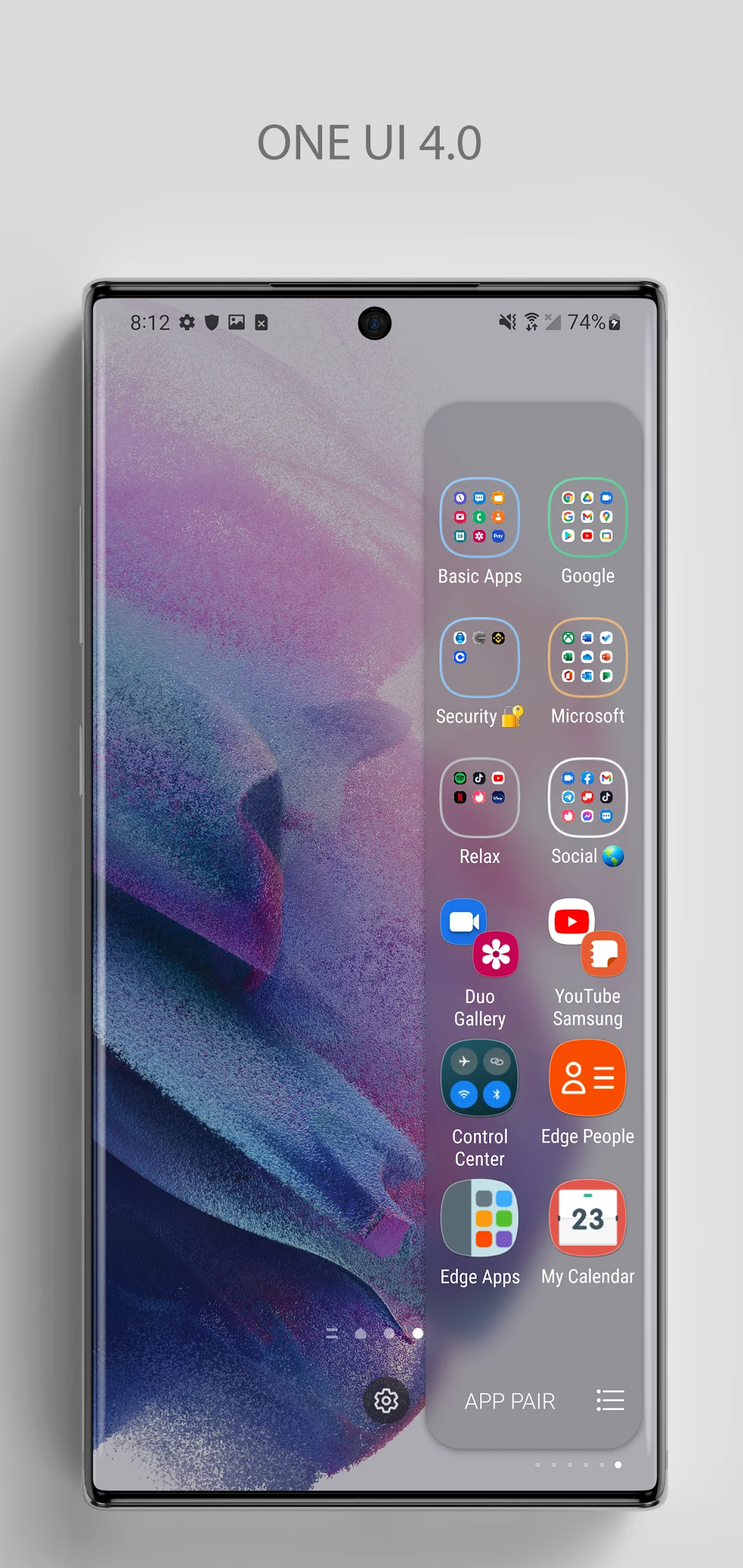
Edge Apps, Multi-window shown in its official Google Play listing.
Visit the official Edge Apps, Multi-window pageEdge Apps, Multi-window is built specifically for Samsung devices with Edge Screen support. It focuses on recent and frequent apps, folders, app pairs, pop-up view, split view, and multi-window workflows.
It can be useful inside that device ecosystem, but the official listing identifies it as a paid, Samsung-only product. S Panel works across compatible Android 12-and-newer devices and is free to install.
Why S Panel wins this practical ranking
Real S Panel weather view from the published Android app.
Visit the official S Panel pageS Panel does not attempt to be the largest launcher or the most complex gesture engine. It wins because its edge gesture opens two things people repeatedly need: useful weather and a clipboard designed for safe reuse. The app is free to install, customizable without overwhelming the user, and its clipboard remains encrypted in private on-device storage.
People who want widgets, app grids, Tasker automation, virtual navigation keys, or Samsung-specific multi-window controls should consider the specialized alternatives above. For a focused side panel that earns its place every day without a purchase, S Panel is the strongest practical choice in this list.