Tap a text field and open your keyboard’s Clipboard tool. Android has no universal history screen that can recover every past copy.
Jenius Tech SRL
To find clipboard history on Android, tap a text field and open Clipboard in Gboard or Samsung Keyboard. History belongs to the keyboard or clipboard app you use; there is no universal archive of everything you copied. Installing another app cannot recover a clip that expired and was never saved elsewhere.
Open Gboard history and pin a clip
Open a note or message and tap where you can type.
Open Clipboard in the keyboard toolbar. If hidden, open the extra tools first. Enable clipboard history if prompted.
Tap an available clip to paste. To keep it, touch and hold the clip and choose Pin.
Find it again in the Pinned section.
Google’s Gboard instructions confirm Clipboard and Pin. Google says unpinned history clears shortly after use; it does not promise one expiry time for every device.
Open Samsung Keyboard history
Tap a text field and confirm Samsung Keyboard, rather than Gboard, is active.
Tap Clipboard in the toolbar. If missing, open More options, often shown as three dots.
Tap a clip to paste. On versions with pinning, long-press the clip or open the pin tool, select the clip and confirm Pin.
Check for the pinned marker before relying on it.
Samsung’s keyboard guide places Clipboard in More options. Pin controls vary by One UI version: check the exact sequence on your Galaxy. We have not hands-on tested every Samsung version and do not claim a universal retention limit.
Why copied text can disappear
Keyboard history can be disabled, cleared or subject to its own retention policy. Unpinned Gboard text expires. Clearing keyboard storage or reinstalling it may also remove local information.
The system clipboard and a keyboard’s saved history are separate stores. Android 13 and later automatically clear system clipboard content after a period; that does not mean every keyboard deletes every pinned entry at that moment. See Android’s clipboard security guidance.
Save selected clips with S Panel
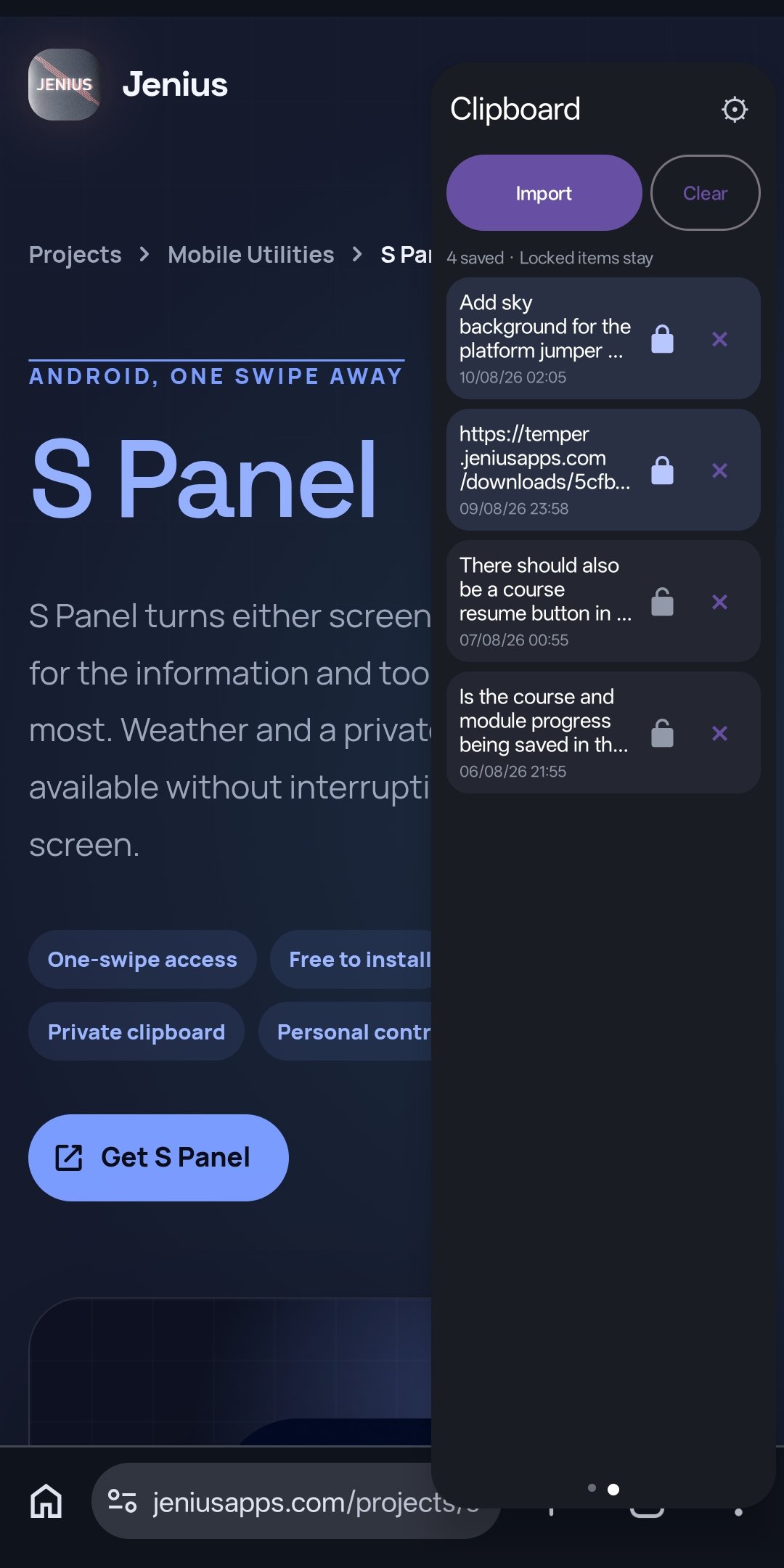
Selected clips in S Panel, not a keyboard-history recovery screen.
S Panel lets you keep selected reusable text in an edge-accessible panel. It is not a recovery service for expired keyboard history. Try a harmless address or reply, not a password or payment detail.
The current implementation supports adding clips through sharing or the panel’s clipboard action and locking entries. Clearing unlocked entries leaves locked ones; the unlocked collection keeps the newest 40. Automatic capture is a separate capability with device and permission limits, not a promise to record every background copy.
Open Clipboard in S Panel, add a selected snippet with the available share or panel action, lock it if needed, then reopen the panel and check it remains. Get S Panel on Google Play to try it. We make S Panel; the screenshot is our app, not Gboard or Samsung Keyboard.
Can you recover an expired item?
Check the keyboard’s Pinned section, the source app and any note or message where you pasted the text. If no copy survives, S Panel cannot reconstruct it. Save useful text before it expires and keep secrets out of a general clipboard.