Use a defined reporting period and real order detail to make a restaurant’s daily figures easier to review.
Jenius Tech SRL
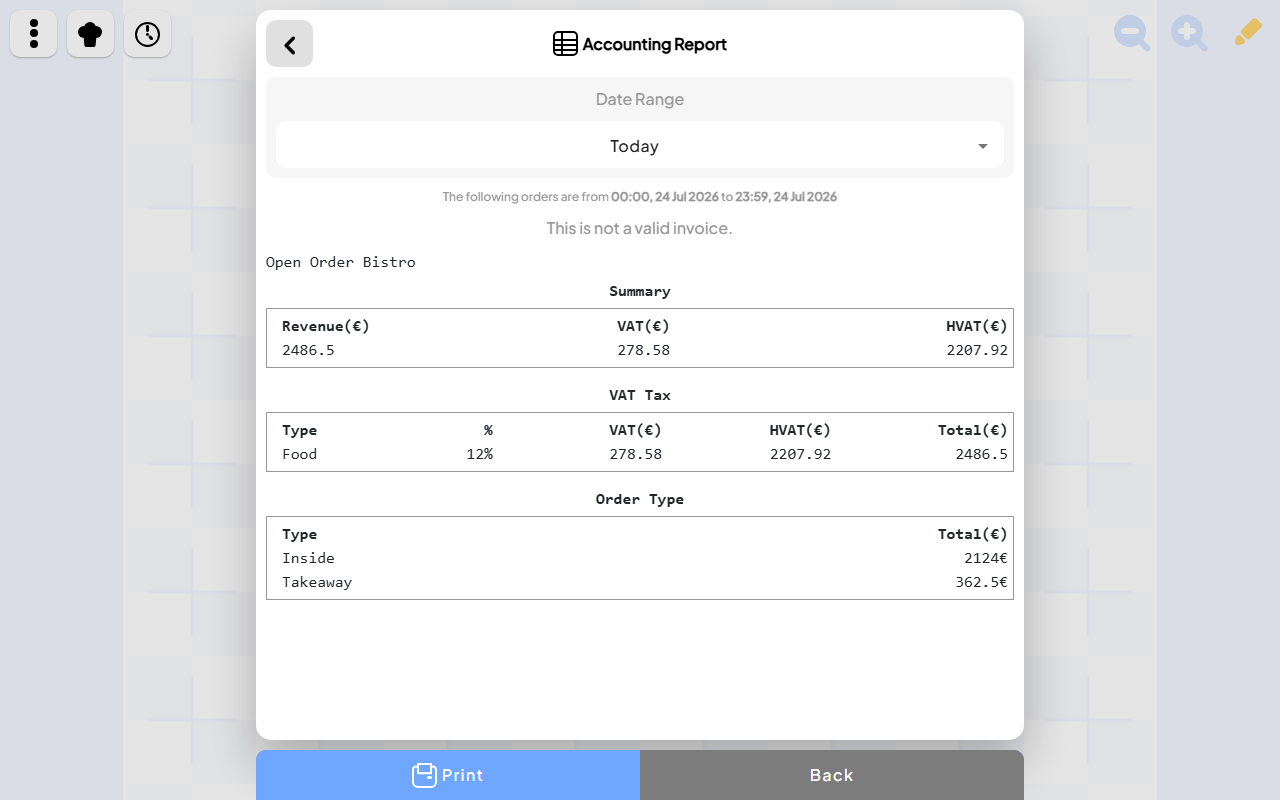
The Open Order demo report shows revenue of €2,486.50, VAT of €278.58 and an amount excluding VAT of €2,207.92. Those figures describe a selected day in the demo restaurant. They are sample interface data, not customer results.
A daily restaurant sales report summarizes a defined period of trading. To make it useful, managers need to understand the date range, the meaning of each total and how to inspect the orders behind it. Open Order by Jenius Tech provides an Accounting Report alongside Order History.
Start with the reporting period
Managers can establish the period before interpreting sales, VAT and order-type figures.
The captured Accounting Report has Today selected and displays the period from 00:00 to 23:59 on 24 July 2026. That visible range tells a manager which orders the report concerns.
Before comparing figures, confirm the date range. If service runs after midnight, decide whether you are reviewing a calendar day or an operational service period, and check that the selected report answers the intended question.
Use the same period when discussing the report with another member of staff. Comparing one person’s afternoon total with another person’s full-day total creates an avoidable discrepancy.
Read revenue and VAT as separate figures
The demo report displays revenue, VAT and a total excluding VAT. It also groups the shown VAT figures by type and rate. Read the column labels before copying a number into a separate record.
In the captured example, €2,207.92 plus €278.58 equals €2,486.50. That is a way to understand this sample display, rather than a prediction about your restaurant’s revenue.
The report visibly states that it is not a valid invoice. Use it as an operational summary. Confirm your restaurant’s reporting and invoicing requirements with the people responsible for those records.
Compare order types within the same report
The real screen separates Inside and Takeaway amounts: €2,124.00 and €362.50 in the demo. Together they match the shown revenue total.
This breakdown can help a manager ask practical questions about the service mix. Was the room unusually busy? Did takeaway contribute a larger share than expected? A category total points to a question; it does not explain the cause on its own.
If the result is surprising, check the period and underlying orders before changing staffing or menu decisions based on one day’s summary.
Use Order History to investigate a question
Individual order references help staff investigate questions behind a daily total.
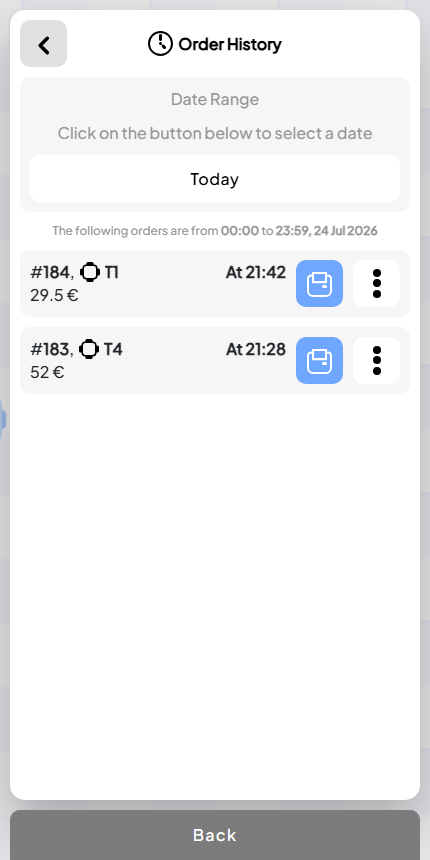
Open Order’s Order History screen shows a date selector and individual entries with order numbers, tables, times and totals. Managers can use those references to locate the orders relevant to a question about the day.
For example, if someone asks about a bill at Table 4, start with the date and the table rather than trying to infer it from the revenue total. Review the specific order, then return to the summary.
Keep any comparison consistent. Select the intended period in both views and confirm what each screen includes before treating a difference as an error.
Make daily review a repeatable routine
Confirm the selected reporting period.
Read the revenue and VAT labels before copying figures.
Review the order-type breakdown.
Identify amounts or patterns that need an explanation.
Locate the relevant entries in Order History.
Record the question and agreed follow-up with the responsible person.
A short, consistent review is more useful than collecting figures nobody understands. The aim is to explain the day’s service and make the next operational decision with clearer information.
Is a sales report the same as an invoice?
No. A summary of a period’s sales and an invoice serve different purposes. Open Order’s captured report explicitly identifies itself as not being a valid invoice.
Can the report show why sales changed?
It shows figures and breakdowns, which help you decide what to investigate. Explaining a change also requires context about the menu, opening hours, service and underlying orders.
Where can I see the reporting workflow?
The Open Order project page shows the real Accounting Report, Order History and checkout views. Launch the app or contact Jenius Tech to discuss the reports your restaurant needs.