Restaurant Order Management Software: A Practical Guide
A practical buyer’s guide to connecting table service, guest ordering, kitchen work and checkout, illustrated with real Open Order screens.
Jenius Tech SRL
Table 4 orders soup. The kitchen needs the table number and quantity, the server needs to know when it is ready, and checkout needs the items actually served. Restaurant order management software connects those steps so the team can follow an order through service.
Open Order by Jenius Tech brings guest ordering, the staff workspace, table management, Chef View, menus, payments, receipts and reporting together. This guide uses its real interface to explain what to look for when choosing a restaurant ordering system.
Start with the room and the right table
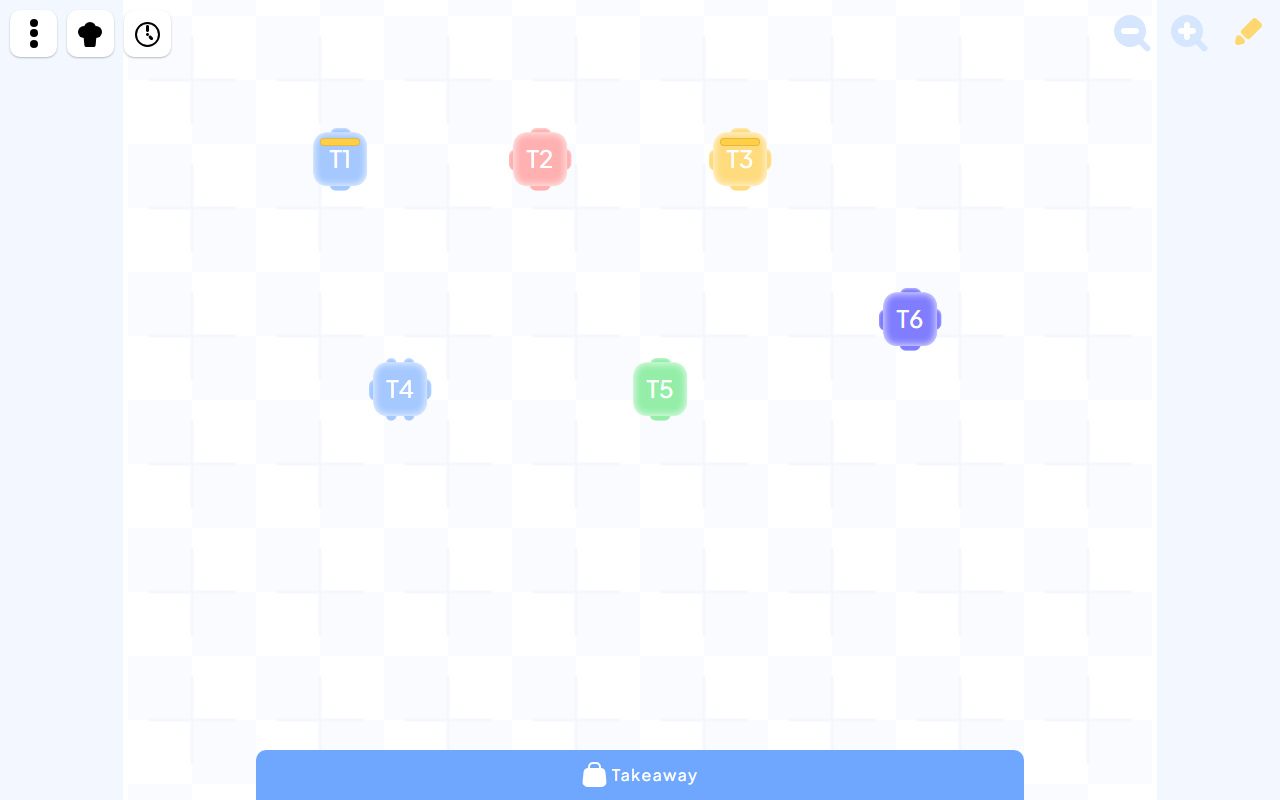
Servers can recognize the room and open the right table from a visual layout.
A floor plan is useful when staff can recognize the room quickly. In Open Order, the floor map uses table shapes and positions, while the table editor lets staff add, rename, move and resize tables. That helps a server open the intended table when a group booking changes the layout.
During a demo, choose a table at the far end of the room and open its order. Then move a table to reflect a real seating change. The important question is whether staff can still identify the right guests without memorizing a second map.
Keep guest ordering connected to the menu
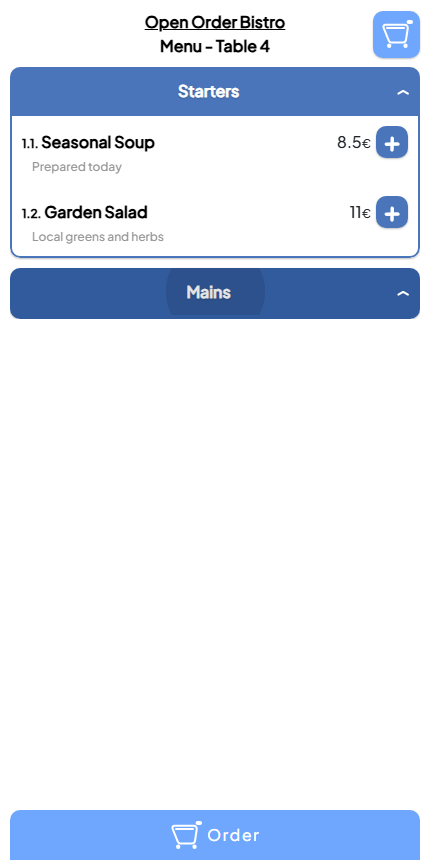
Guests can browse a table-specific menu and choose dishes on their phone.
A QR code can open a static menu or a working ordering screen. Those are different services. A menu shows choices; an ordering screen also lets a guest select items and submit an order that the restaurant can handle.
Open Order’s guest screen identifies the table and shows categories, dishes, prices and add buttons. Its menu editor keeps categories, descriptions and prices within the restaurant’s workspace. Before service, check the guest view after saving a menu change, so the displayed choices match what the team intends to serve.
Make the kitchen handoff visible
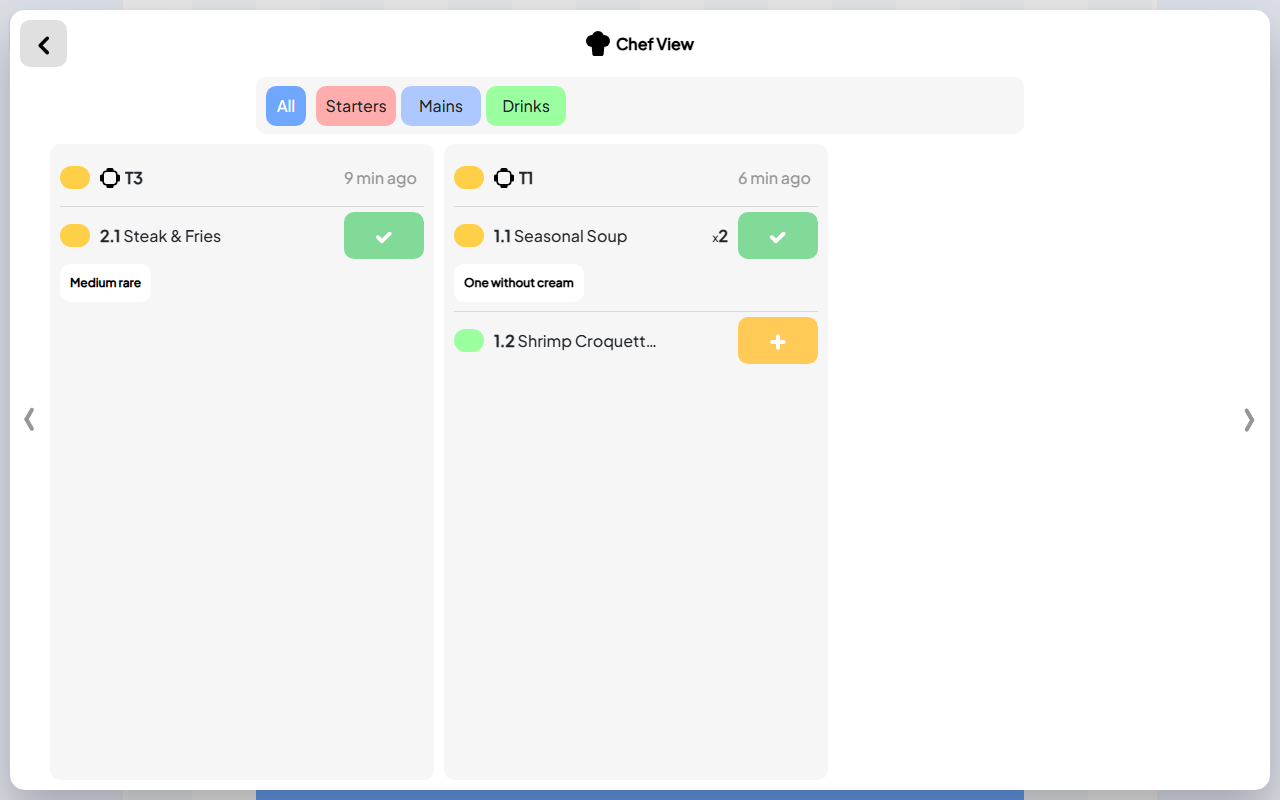
Kitchen staff see dish details and progress without reconstructing the order.
An order should remain understandable after it leaves the table. The kitchen needs item quantities and notes, and the floor team needs a clear signal when preparation is complete.
Chef View gives Open Order kitchen staff a dedicated view of table orders and dish progress. Live service updates help staff follow new items and readiness. Agree who updates each stage and who collects ready dishes; shared screens work best when those responsibilities are clear.
Ask the team to follow one order together during a trial. Include a quantity change or a preparation note that resembles a normal service request.
Connect checkout to the order
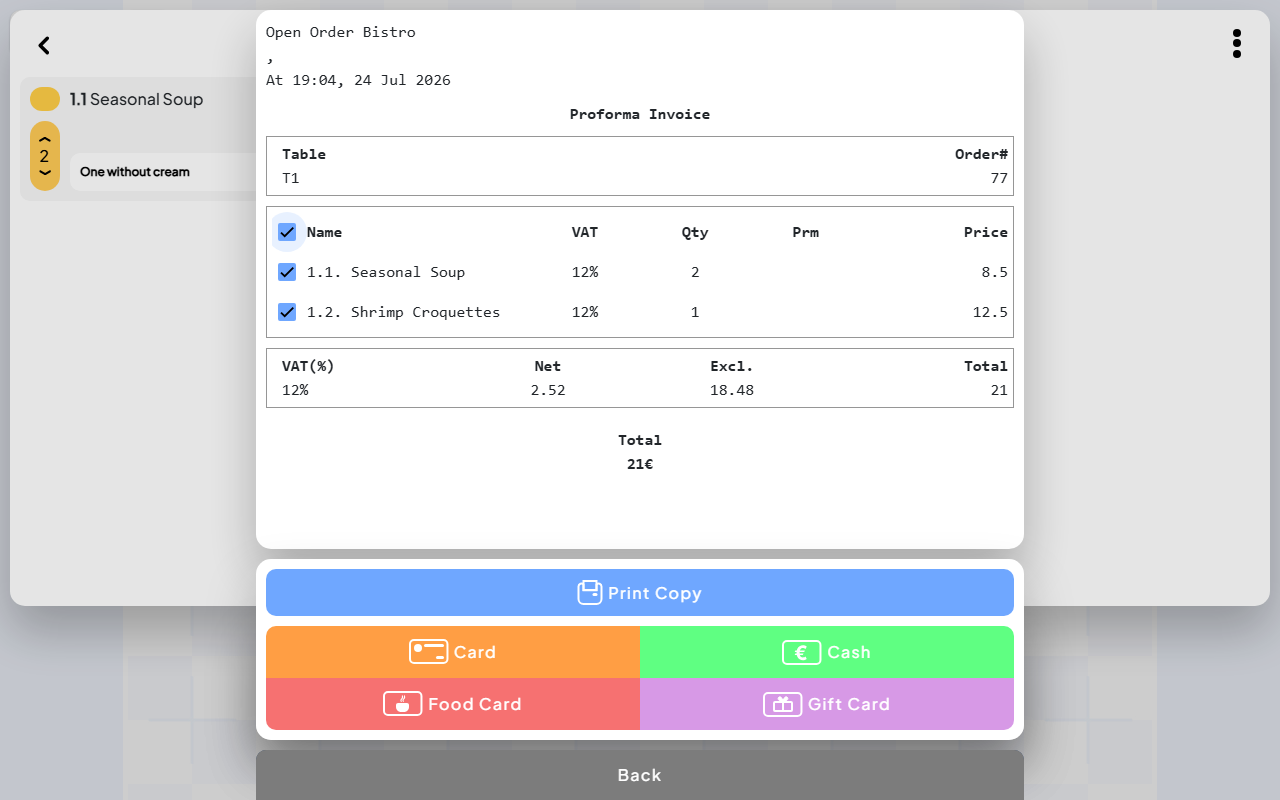
Staff can review the bill with the guest and continue through checkout.
When a guest asks for the bill, staff should be able to review the ordered items, quantities and total together. Open Order’s receipt screen shows item selection, VAT totals, a print action and payment choices.
The captured screen is labelled Proforma Invoice. Use it to assess the checkout workflow, and confirm the final receipt and payment setup your restaurant needs during onboarding. Payment buttons alone do not describe a card-terminal integration.
After checkout, order history gives staff a way to revisit an order instead of relying on memory or a handwritten note.
Review the day without losing the detail
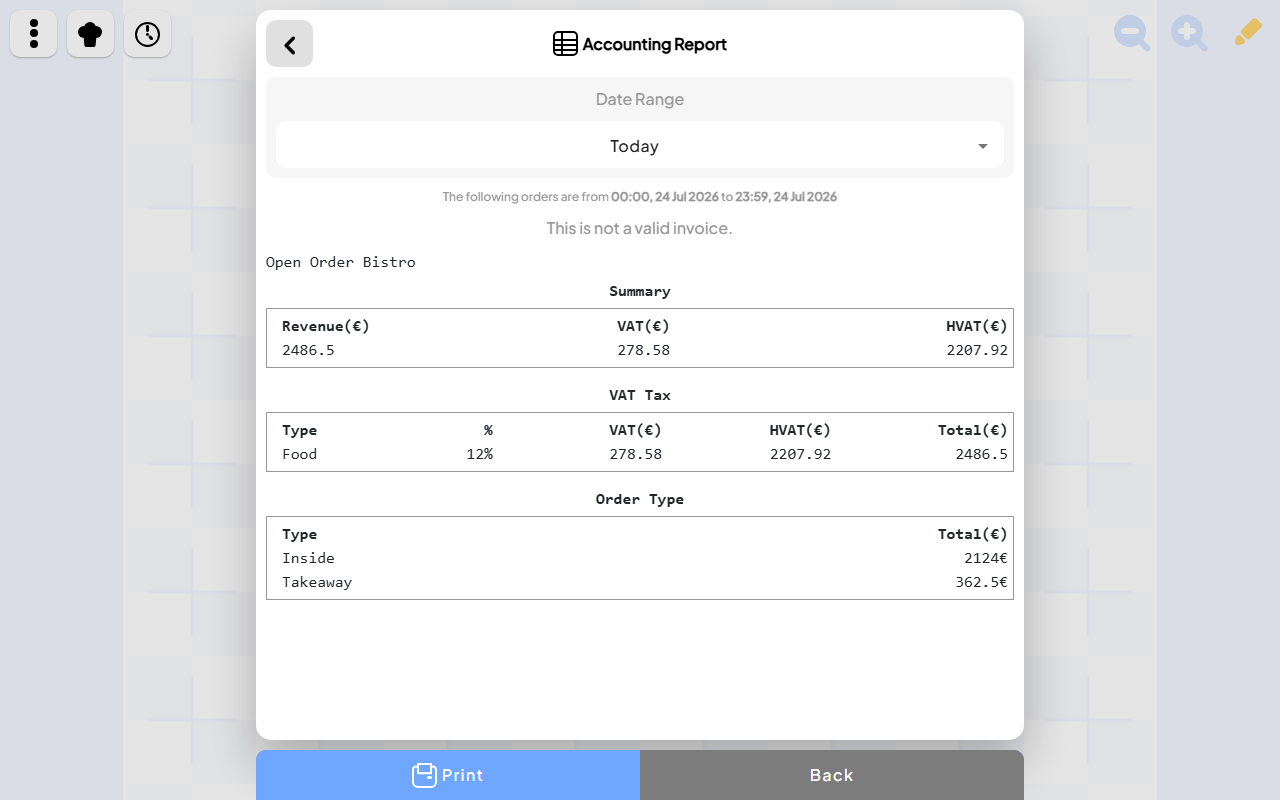
Managers can inspect a defined period before checking individual orders.
Open Order’s Accounting Report shows a date range, revenue, VAT and order-type totals. Order History supplies individual order references for a day’s service. Managers can use the two views to investigate a question about a total or a particular table.
Choose a reporting period deliberately. A calendar day and a service that continues after midnight can answer different questions. Check that everyone reviewing the figures uses the same period.
Questions to ask before choosing restaurant software
Can a new server identify a table and open its order?
Can a guest place an order from the current menu?
Can the kitchen see quantities, notes and dish progress?
Can staff review the bill and follow the payment workflow?
Can a manager find the order later and review the day’s figures?
Does the proposed setup support your devices, printers and payment arrangements?
Is restaurant order management software the same as a POS?
The jobs overlap. Order management follows service from taking an order to fulfillment and checkout. A POS also concerns recording a sale and the payment setup. Evaluate the whole workflow rather than choosing by the label alone.
Who should consider Open Order?
Independent restaurants looking for connected guest ordering, a visual floor map, kitchen coordination and everyday checkout tools should explore it. Confirm the setup against your own menu, service style and equipment.
Use the Open Order project page to inspect the full workflow, then launch the app or contact Jenius Tech to discuss a restaurant setup.