How a Kitchen Display Keeps Restaurant Orders Moving
A practical guide to the kitchen handoff: readable orders, clear responsibility and dish progress in Open Order’s Chef View.
Jenius Tech SRL
Two bowls of soup belong to Table 1, and one needs no cream. That detail must survive the trip from the floor to the kitchen. A restaurant kitchen display system gives the team a shared screen for the orders they need to prepare.
Open Order’s Chef View is a kitchen workspace for table orders and dish progress. It shows item details that matter during service, while live updates help the floor team follow changes. Here is how to evaluate the workflow and make the handoff useful.
Read the order without reconstructing it
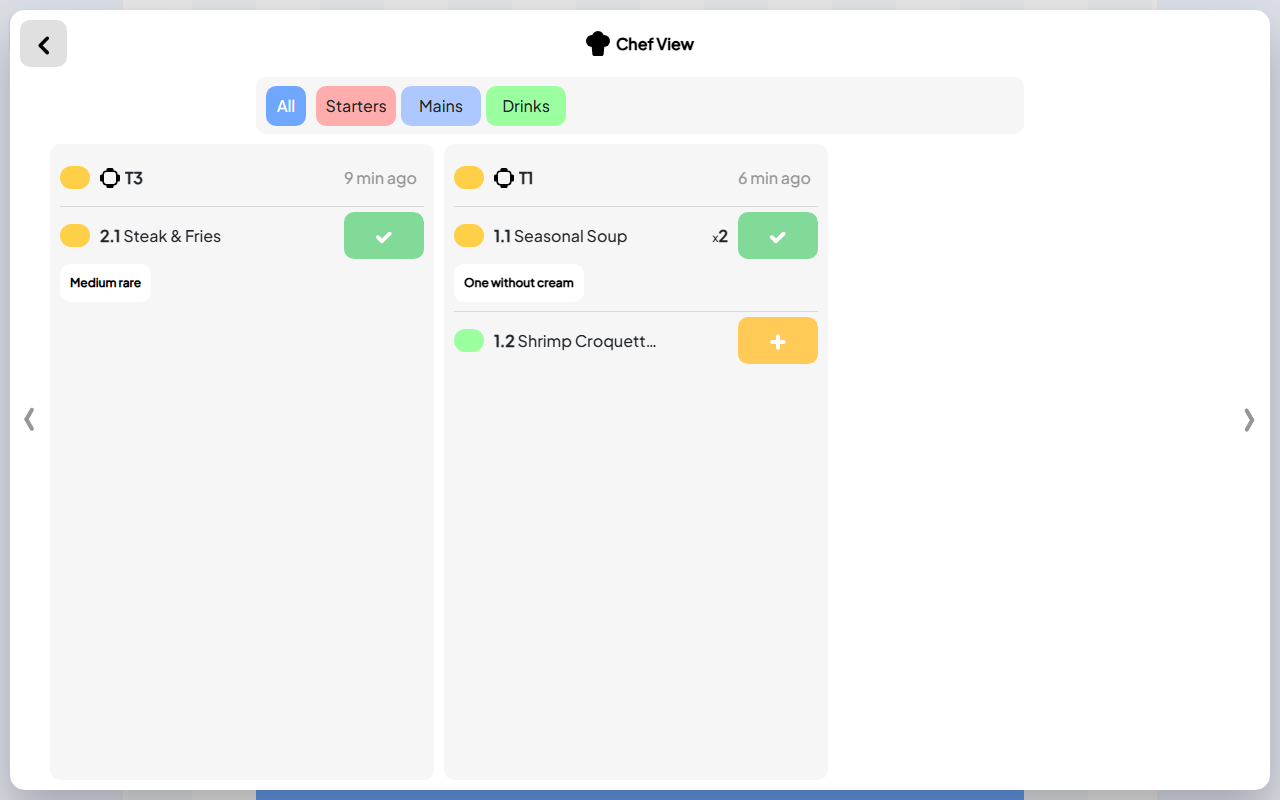
Cooks can see the table, quantities and preparation notes in one order view.
The real Chef View screen shows table identifiers, dish names, quantities, preparation notes and elapsed time. Kitchen staff can see which table an item belongs to and read a note such as One without cream beside the dish.
During a trial, use an order with more than one quantity and a normal preparation request. Ask the cook to describe it from the screen alone. If the explanation requires a second conversation, find out what information needs to be recorded more clearly.
A screen helps preserve an instruction; it does not establish whether a dietary request can be safely fulfilled. Staff should agree that with the kitchen before accepting the request.
Give dish progress a shared meaning
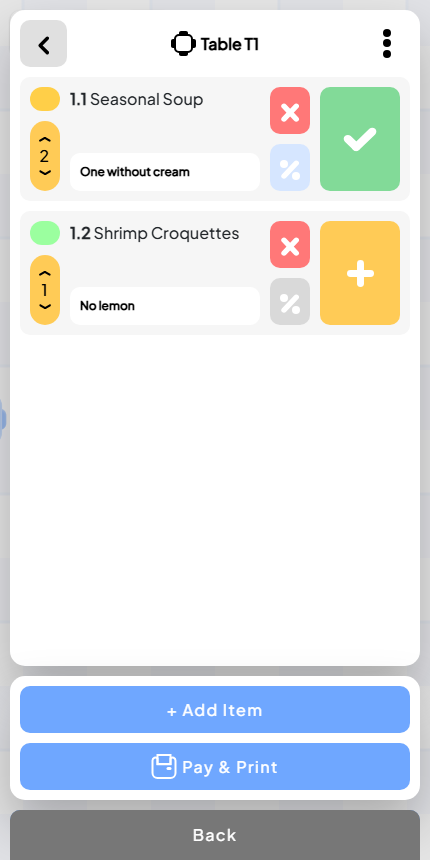
The floor team can follow service changes as the kitchen moves work forward.
A useful kitchen workflow tells staff what has arrived, what is being prepared and what is ready. Open Order supplies dish progress controls in Chef View and shows readiness changes in its live service feed.
Agree on the meaning of each stage before using the system in a busy service. For example, ready should mean the dish can be collected, rather than that someone has started plating it. Assign responsibility for moving items forward.
The purpose is coordination. A progress control only helps the floor team when kitchen staff use it consistently.
Connect the kitchen back to the floor
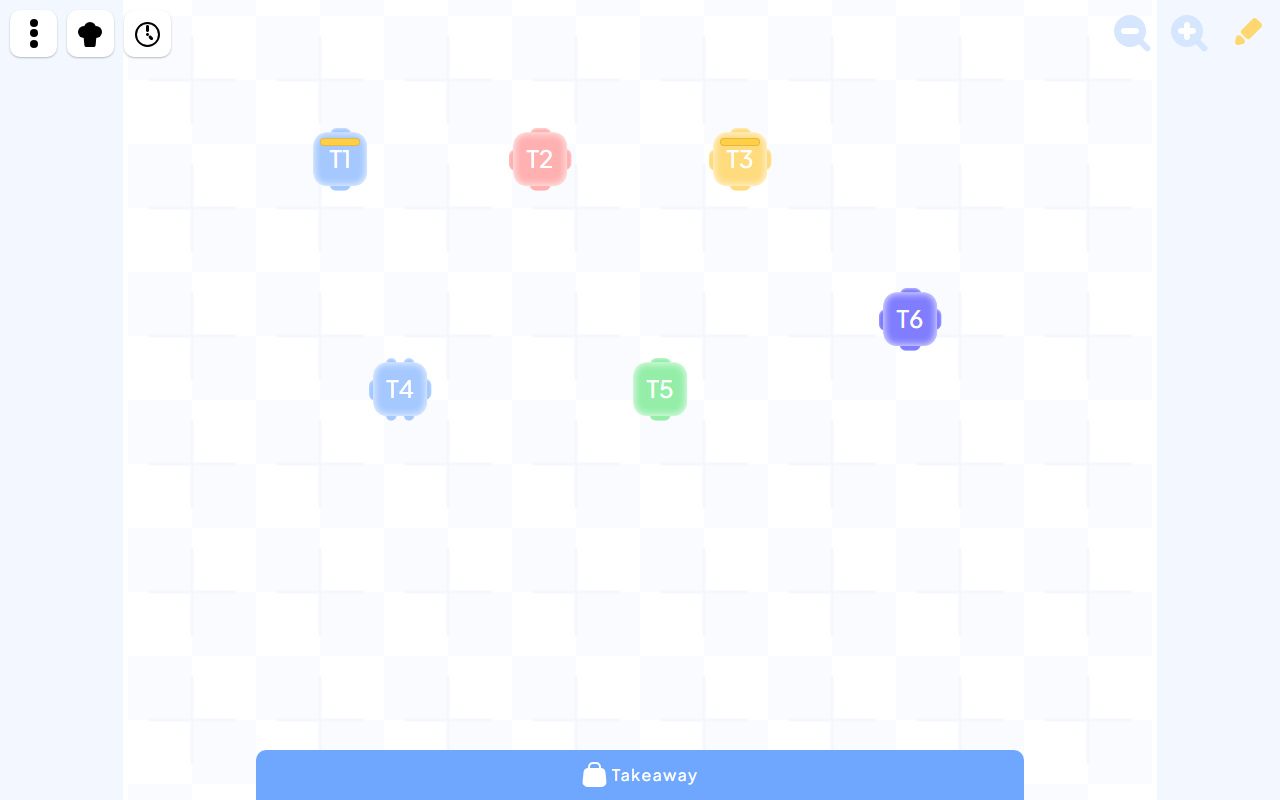
A recognizable room layout helps staff deliver the ready dish to the intended table.
When a dish is ready, the person serving it needs to know which table to visit. Open Order’s live feed shows service events such as dish readiness and new items, giving staff another way to follow the current work.
Keep the floor map recognizable too. Matching table names across the room, the order and Chef View makes the final handoff easier to explain to a new member of staff.
Decide how the team handles exceptional cases: a late addition, an incorrect table selection or a guest changing a request. Test a normal correction during training instead of introducing the rule for the first time at peak service.
Test Chef View with a small service scenario
Place an order for a clearly identified table.
Include two of one dish and a readable preparation note.
Find the table and quantities in Chef View.
Follow the dish through the preparation workflow.
Confirm the floor team can see when it is ready.
Check the order at checkout and find it in history afterward.
Run the scenario with the people who will cook and serve. Let them use the screen on the device you expect to keep in the kitchen, at a readable size and position.
Questions about kitchen display systems
Is a kitchen display the same as a printed ticket?
Both communicate an order. A display can also show changing dish progress on screen, while a printed ticket remains a physical record. Evaluate the arrangement that fits your team’s service habits.
Can Chef View replace communication between staff?
No. It gives the team common order information and a place to follow progress. Staff still need clear responsibilities and a way to resolve unusual requests.
What should I check before adopting Open Order?
Confirm the menu, table names, kitchen device, readability and staff handoff. Also discuss any required printing or equipment connections with Jenius Tech.
Explore the Open Order project page for the kitchen screen alongside guest ordering, the floor map, checkout and reporting. That full journey shows whether the kitchen view fits the restaurant’s daily work.