Create and check the menu
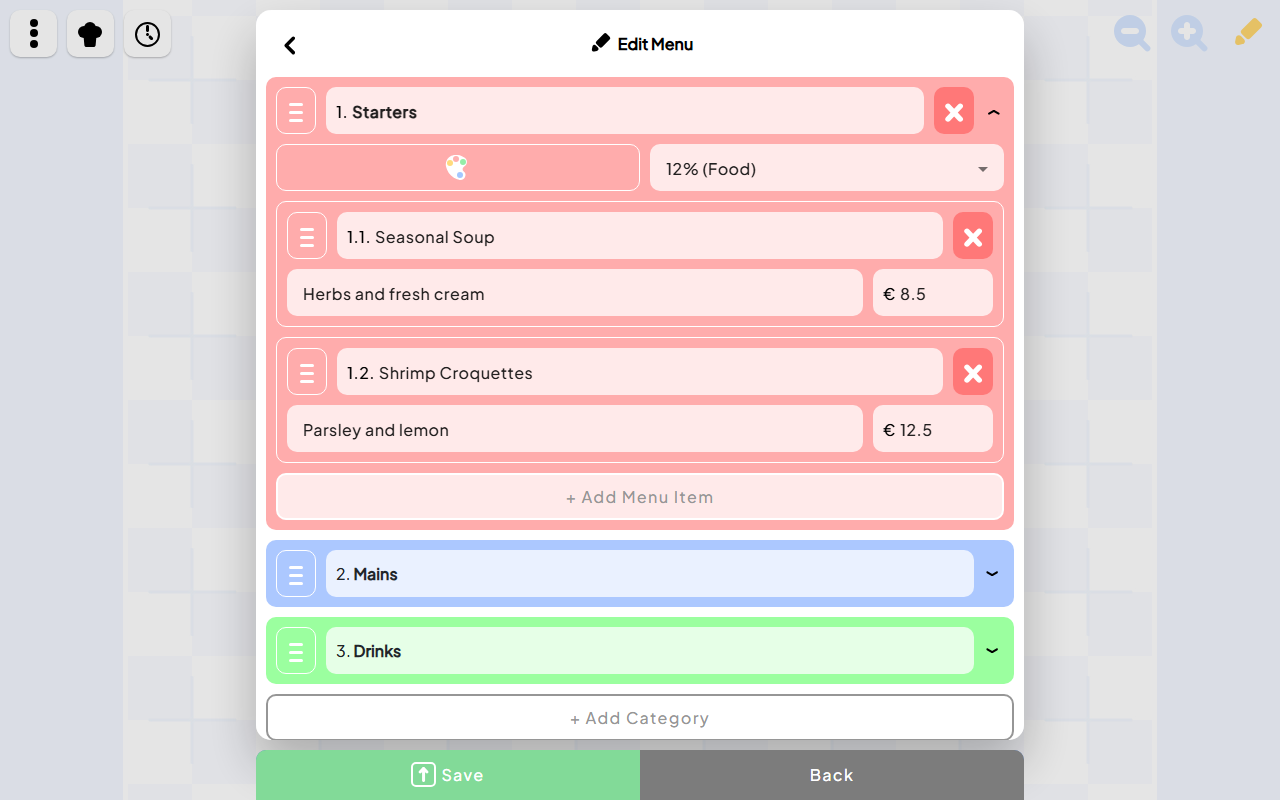
Edit the actual menu guests will see, not a separate PDF.
Explore Open OrderUpdate the menu for the whole team.
Edit dishes, prices and categories, then save. Your changes appear in the staff menu and guest ordering demo on this page.
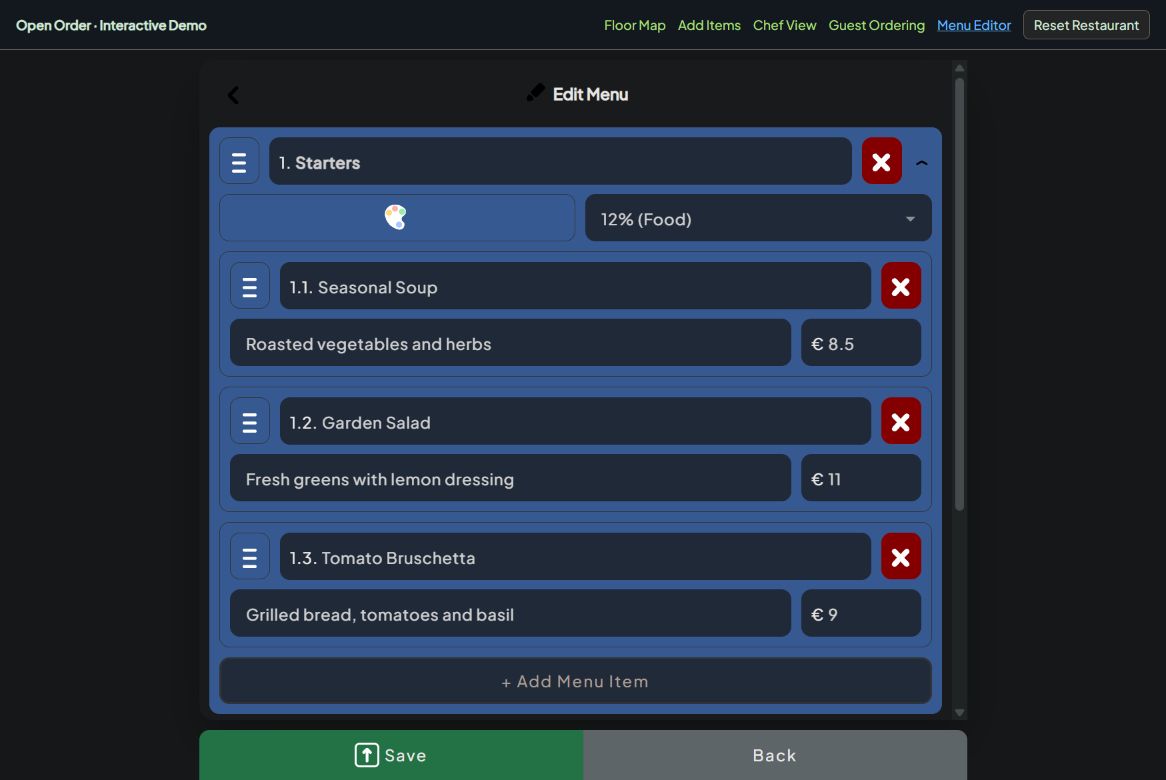
Open your restaurant workspace and choose Menu, then Edit Menu. Create the categories guests recognise, such as starters, mains and drinks. Add each item’s name, description and price. Check options, availability and the information guests need to choose safely. Have the responsible person verify allergen information and translations. Save, reopen the guest menu and confirm that a price change appears correctly.
Generate a table code and print it
A table-specific code carries the restaurant and table context.
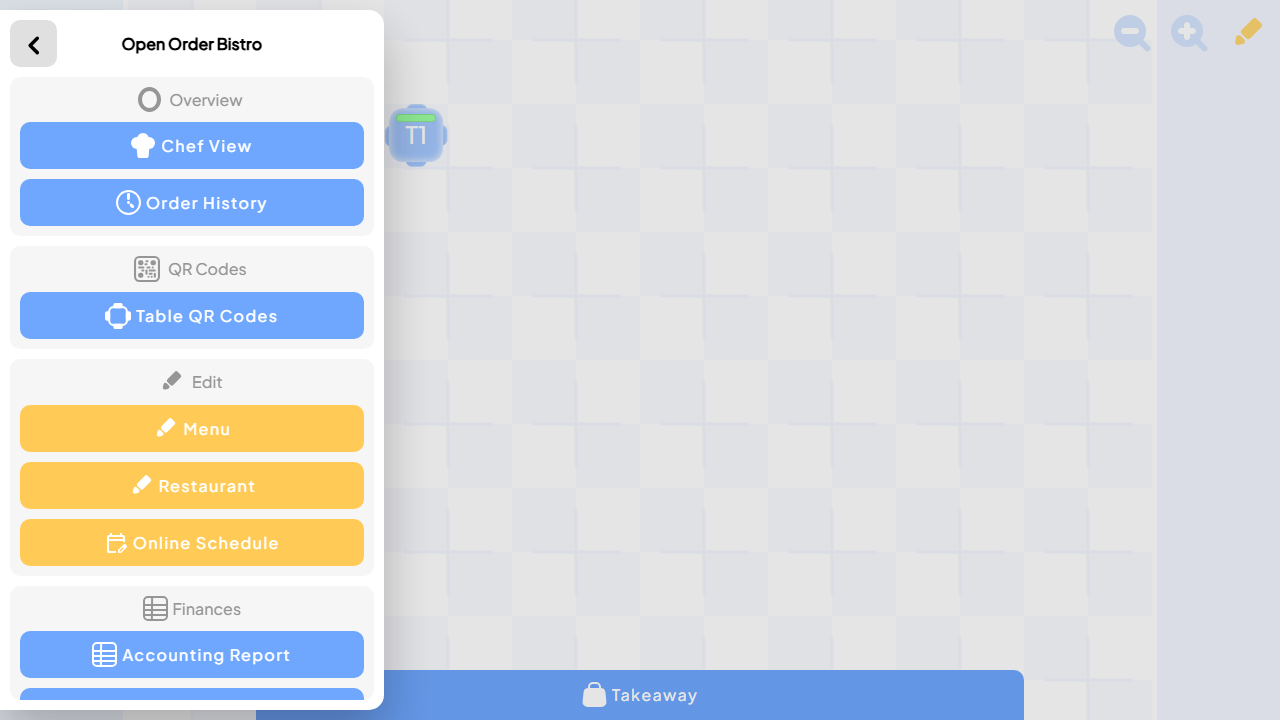
Explore Open OrderCreate or check the tables in the restaurant workspace. Make sure their visible numbers match the physical tables. Open Table QR Codes. The app generates a separate link for each table, carrying restaurant, table and access-code information. Choose Print. Use the browser print preview to select your printer or Save as PDF. Keep the code’s white margin, print a readable table number and test one copy at actual size before producing the rest.
Test the guest-to-kitchen journey
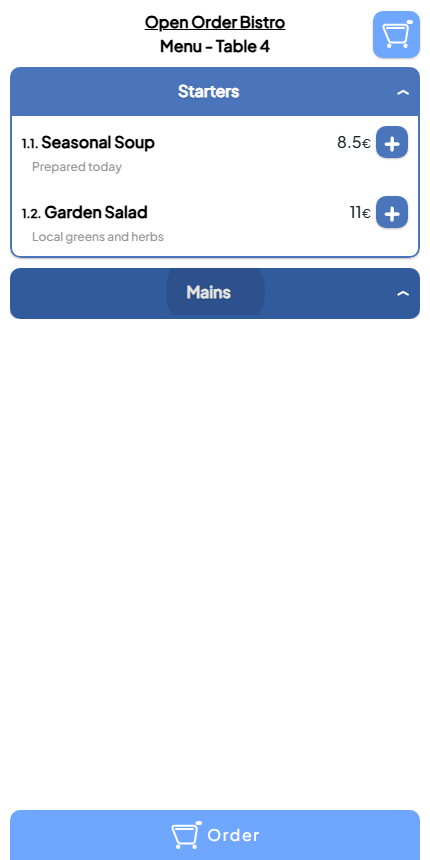
Use the isolated guest and Chef View demos to explore the ordering workflow.
Explore Open OrderTry ordering as a guest.
Build a guest order from the same Demo Bistro menu. Your submitted dishes appear in the staff and kitchen demos above.
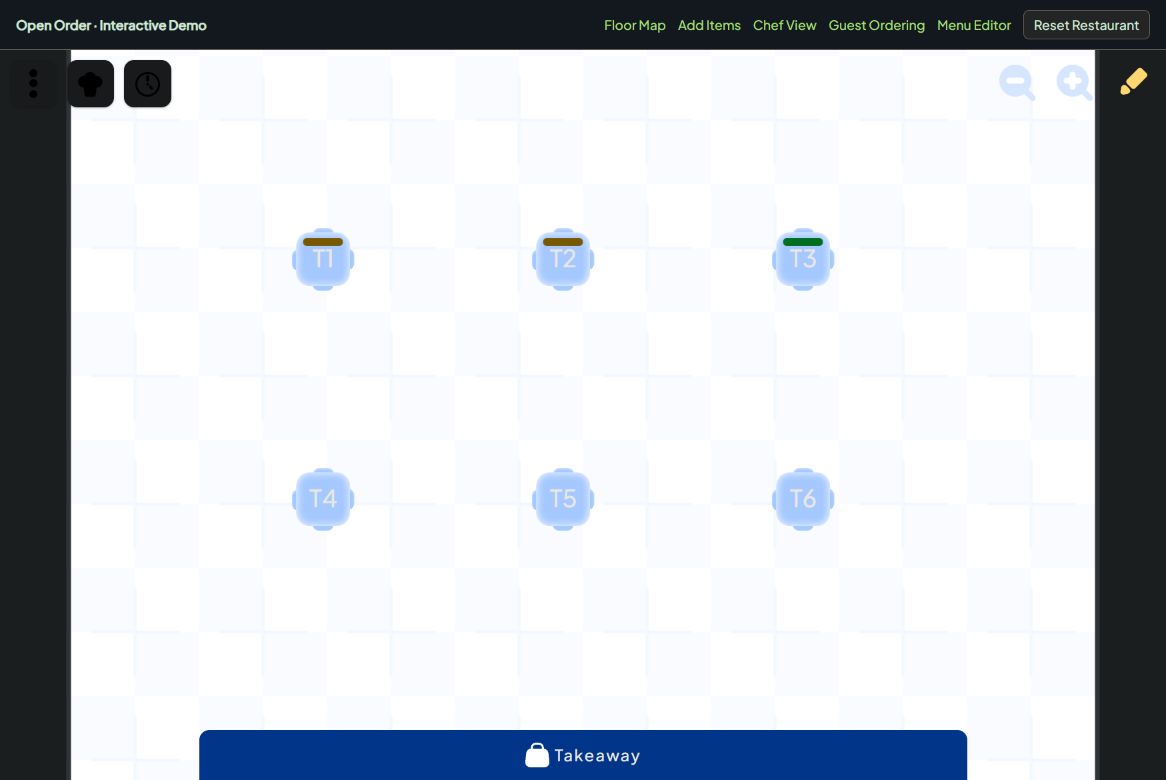
Scan the printed code using a phone camera. Open the link in a browser without a staff login. Confirm the restaurant and table, read prices, select a dish and check quantity and notes. In a test restaurant, submit the order and open Chef View on a second device. Verify the correct table, dish and notes arrive. Follow preparation and hand-off with a staff member. Test cancellation and correction procedures before a real service.
Follow the order in Chef View
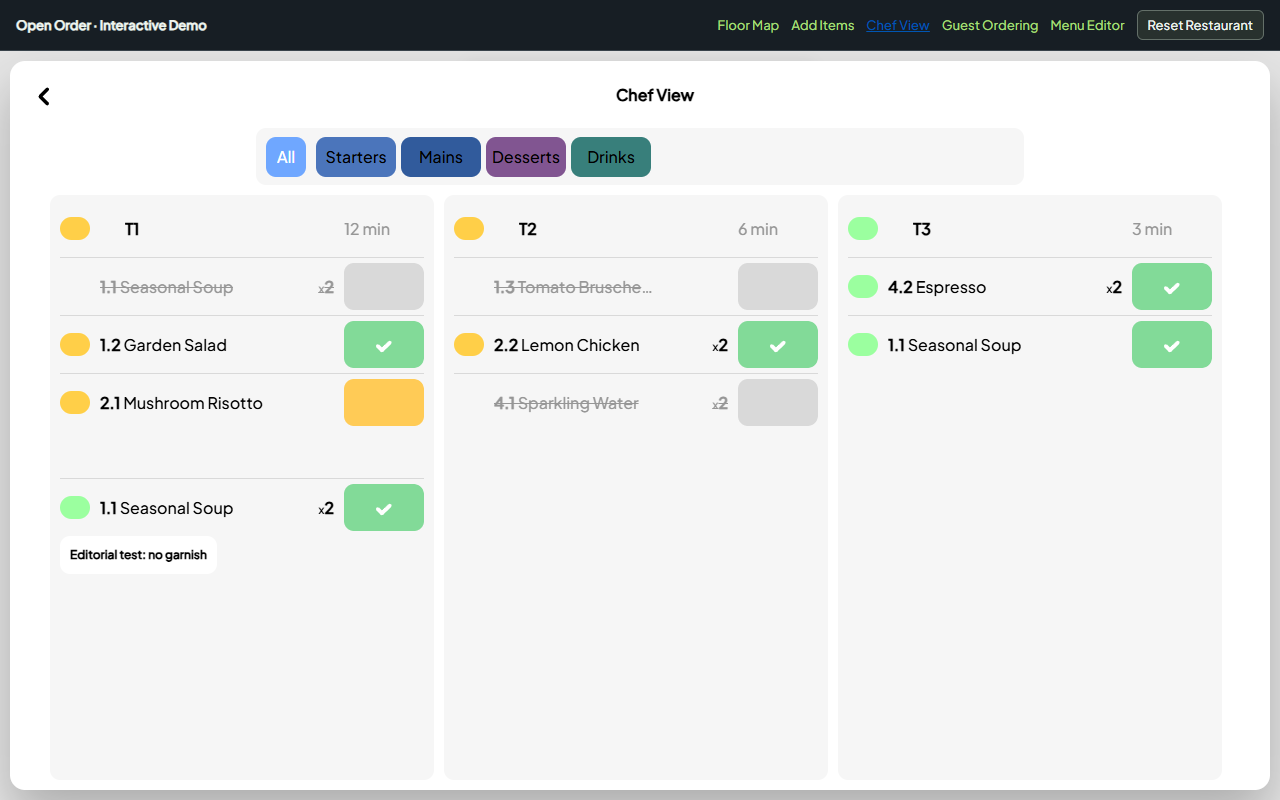
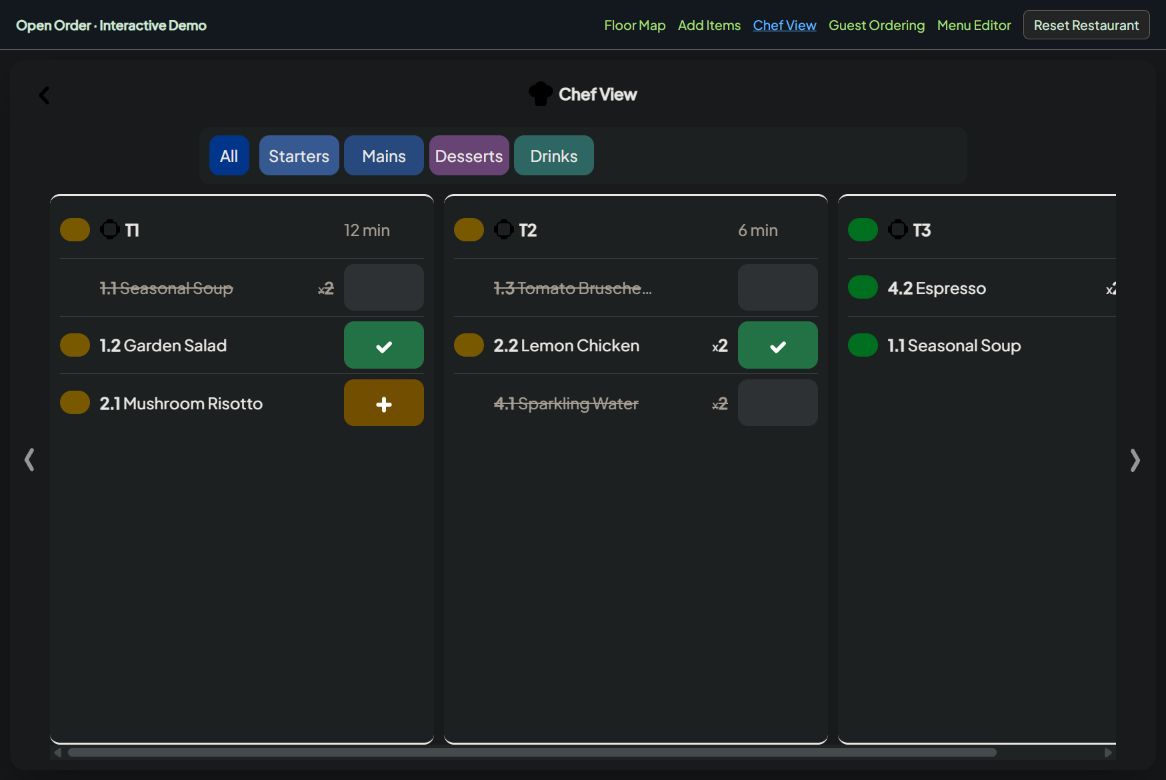
Verified 6 November 2026: two soups submitted from the guest demo arrive at T1 with the same note. Isolated example data, no live order.
Explore the kitchen workflowKeep every dish moving.
Review existing orders with completed dishes, dishes in preparation and new requests. Mark an item ready and see the shared order update.