QR Code Restaurant Ordering: From Table to Kitchen
What happens after a guest scans a table QR code? Follow the menu, order and kitchen handoff in Open Order.
Jenius Tech SRL
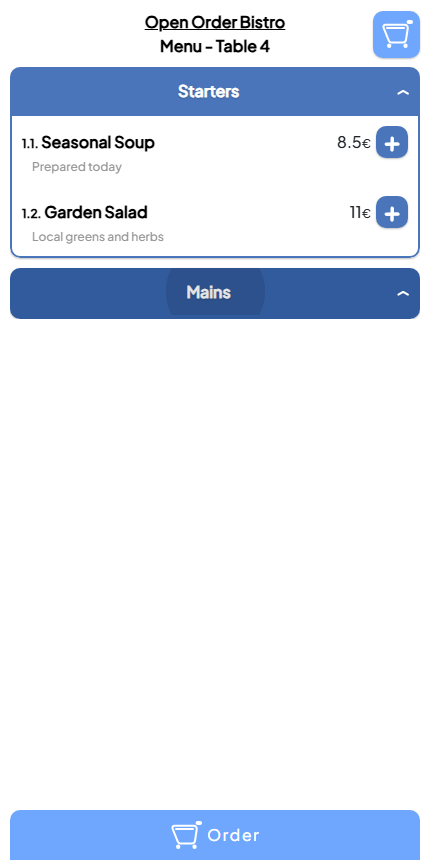
A guest at Table 4 scans the table’s QR code, reads the starters and adds soup. The useful part is what happens next: the restaurant needs an order attached to that table, and the kitchen needs a clear list of what to prepare.
QR code restaurant ordering lets guests use their phone to browse a menu and place an order. Open Order by Jenius Tech connects that guest experience with a restaurant staff workspace, table orders and Chef View.
A QR menu and QR ordering do different jobs
Guests can move from reading the menu to selecting dishes on a phone.
A QR menu may simply open a PDF or a list of dishes. Guests still tell a server what they want. QR ordering adds selection and submission, so the restaurant receives an order it can act on.
Open Order’s guest screen shows the restaurant name, the table, categories, descriptions, prices and add buttons. A visible Order control gives the guest a path beyond browsing. That makes it suitable for restaurants that want self ordering alongside a staffed service.
Before choosing a tool, ask to see a submitted order in the staff workflow. A polished menu alone does not show how the kitchen will receive it.
Check the table before the guest orders
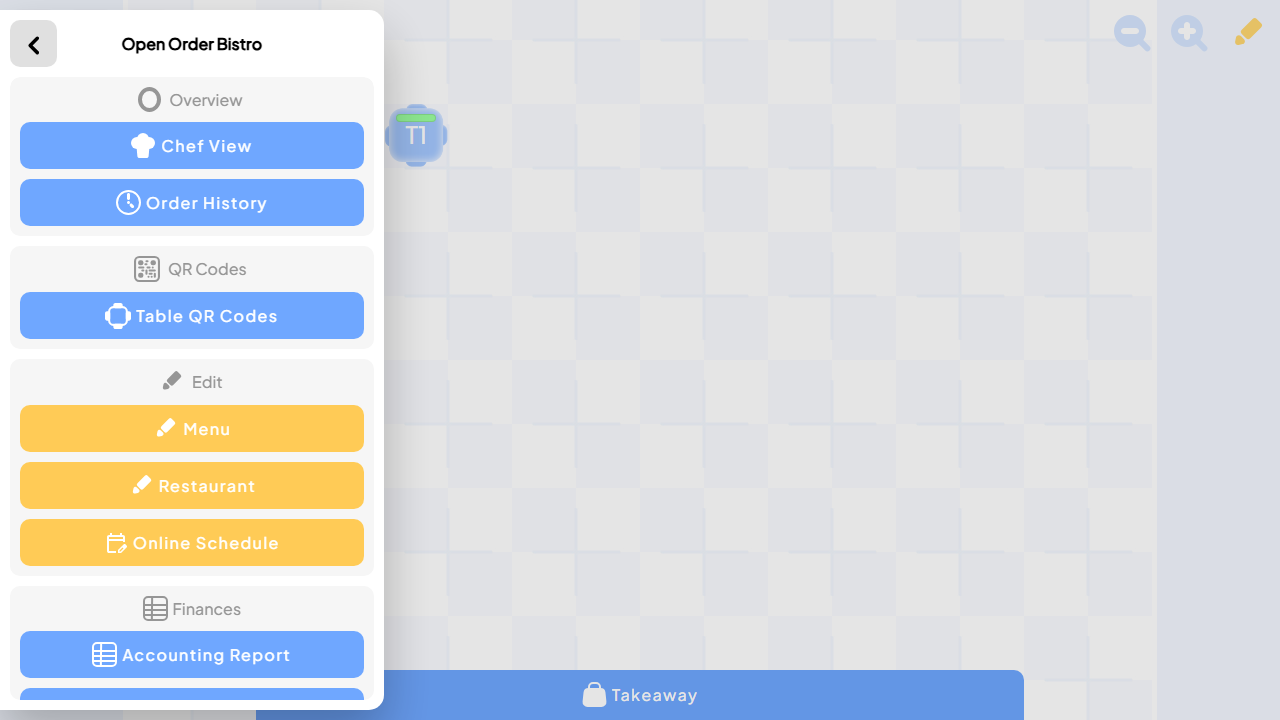
Restaurant staff can reach QR code and service tools from the same workspace.
Table context matters as much as the dishes. If an order reaches the wrong table, staff must resolve the mistake while guests wait. Open Order provides QR code tools in its staff workspace and displays the table on the guest menu.
Test each printed code from a guest phone before placing it in the room. Compare the table shown on the phone with the label on the physical table. Repeat that check when renaming tables or changing seating.
Keep the code easy to reach and the instructions short. Staff should offer help to guests who cannot scan it or prefer to order with a person.
Follow the order into Chef View
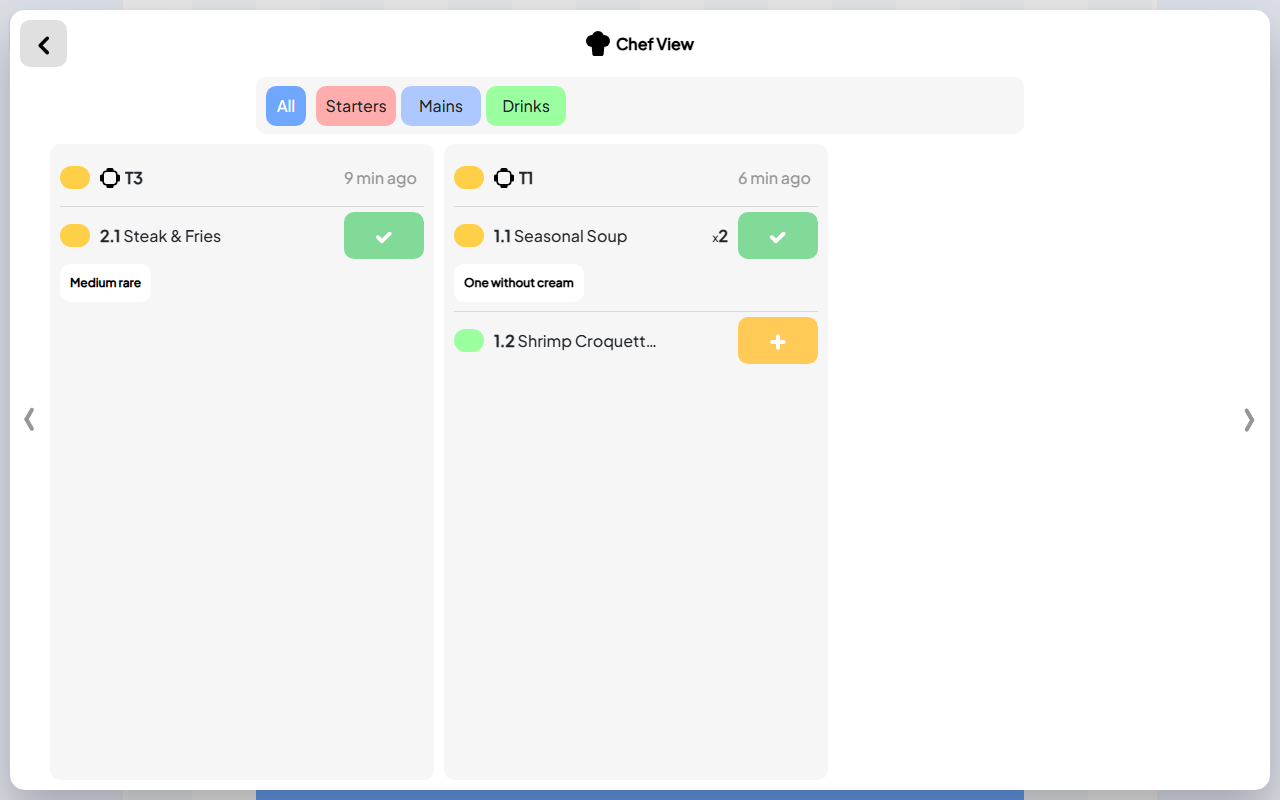
The kitchen receives useful order context for preparing and handing off dishes.
Chef View is where the kitchen can work with the order’s dish details. The real Open Order screen shows table identifiers, quantities, preparation notes and progress controls. Staff can also follow service changes through live updates.
For a useful trial, place a small test order, find it at the correct table, locate it in Chef View and follow a dish until it is ready. Decide who updates progress and who takes the dish to the guest.
This is the handoff that separates an ordering system from a digital menu. Evaluate it with kitchen staff present.
Keep the guest menu ready for service
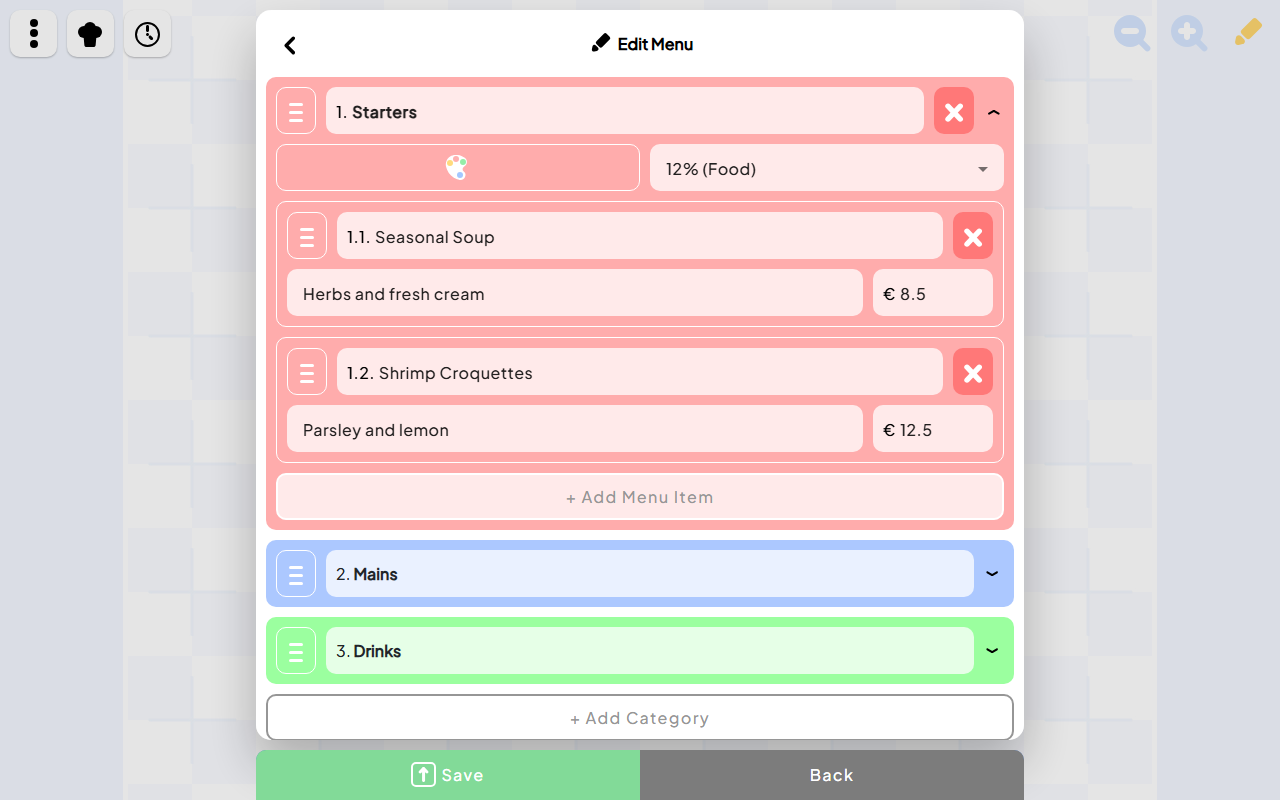
Staff can maintain the choices guests see before the next service begins.
The Open Order menu editor lets restaurant staff change categories, dishes, descriptions and prices. After saving an edit, open the guest menu and check the actual wording and price.
Clear descriptions help guests choose without asking basic questions about every dish. Group items under recognizable categories and give staff a way to answer questions that the screen cannot settle.
For dietary or allergy questions, guests should speak with the restaurant team. A digital menu does not replace confirmation of ingredients and preparation practices.
A short QR ordering launch checklist
Scan a code from the phone types your guests commonly use.
Confirm the restaurant and table displayed are correct.
Read dish names, descriptions and prices on a small screen.
Submit a test order and locate it in the staff workspace.
Follow the order into Chef View and confirm the handoff.
Check the updated guest menu after a saved menu edit.
Agree on a staff-assisted ordering option.
Does a QR code automatically take payment?
No. A QR code is an entry point. Browsing, ordering and payment are separate parts of a product’s workflow. Confirm the payment path rather than assuming it from the presence of a QR code.
Does self ordering replace restaurant staff?
It changes how some orders arrive. Staff still welcome guests, answer questions, resolve requests and serve the food. Plan the assisted service around the guest experience.
How can I try Open Order’s guest ordering?
Start with the Open Order project page to view the real guest and staff screens. Launch the app or contact Jenius Tech to arrange the table, menu and service setup you want to evaluate.