A service-ready menu starts with clear categories, accurate descriptions and checked prices. See how to maintain it in Open Order.
Jenius Tech SRL
The soup changes before lunch, but the guest menu still describes yesterday’s recipe. Digital restaurant menu management is the work of keeping categories, dishes, descriptions and prices accurate wherever guests and staff use the menu.
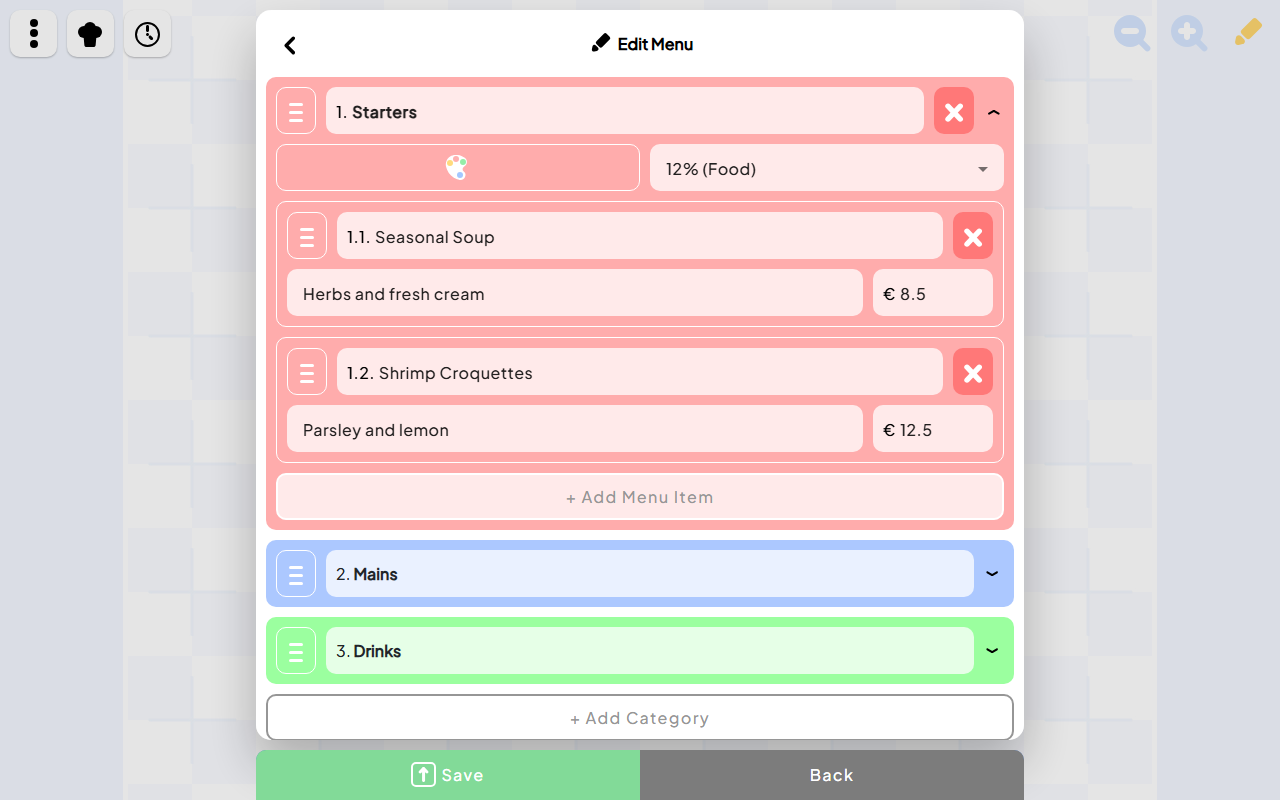
Open Order by Jenius Tech puts menu editing alongside the restaurant’s service tools. Its real editor shows category names, item names, description fields, prices and a Save action. The guest view turns those choices into a menu guests can browse and order from.
Organize categories around how guests choose
Restaurant staff can maintain an understandable category structure and its dishes.
The Open Order editor groups items under categories such as Starters, Mains and Drinks. Each category has its own editable name and controls. That gives restaurant staff a recognizable structure to maintain.
Use categories a guest understands before using internal kitchen labels. A diner deciding between a starter and a main should not have to learn the restaurant’s shorthand.
Review the menu from a small phone as well as the staff tablet. A structure that looks manageable in an editor may require too much searching on the guest screen.
Write descriptions that help someone order
The captured menu editor pairs Seasonal Soup with a description and price. Those fields should answer the guest’s first questions: what is the dish, what makes it recognizable, and what does it cost?
Use concrete ingredients or preparation details the kitchen can confirm. Keep names consistent between the guest menu and the staff workflow, so a server and a cook can refer to the same item without translating it.
Ask the team which questions guests repeat most often. Improve the relevant description when the answer is stable and accurate. For allergy or dietary requests, keep a clear route to speak with staff rather than treating a short description as a complete assurance.
Check the saved menu from the guest’s side
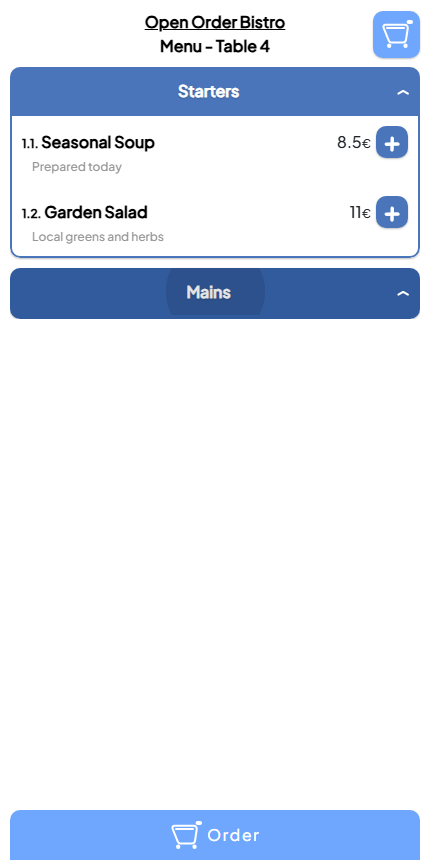
A phone preview lets the team check the choices guests will use at the table.
The Open Order guest screen displays dish names, descriptions and prices within expandable categories. It also shows the table, add controls and an ordering action. This is the view that should receive the final menu check.
After saving an edit, open the guest menu and compare it with the approved change. Check the name, description, price and category. Ask a second person to read important price changes before service starts.
Test one item through ordering when training staff or introducing a new menu. Confirm the dish remains identifiable in Chef View and on the bill.
Give menu changes an owner
A useful menu process needs responsibility as well as an editor. Choose who can approve a change, who saves it and who checks the result. For a small restaurant, one person may perform all three tasks, but the steps still matter.
Keep a short change list for each service: which dish changed, what the new wording or price is, and when it should be used. This is an operating practice, rather than a claim that the software supplies an approval system.
Avoid changing a price casually during active service. First agree how staff will handle orders already taken and how they will explain the change to guests.
A pre-service menu checklist
Compare dish names with the kitchen’s planned menu.
Check descriptions against what will actually be served.
Verify prices and the intended category structure.
Save approved edits and inspect the guest view.
Brief staff on changes guests may ask about.
Test a new item through the ordering and kitchen workflow.
How is a digital menu different from a PDF menu?
A PDF can display a menu, but it does not by itself provide item selection or submit an order. Open Order’s guest interface combines menu browsing with ordering controls.
Can staff update prices in Open Order?
The menu editor includes price fields beside the items and a Save action. Use the guest-screen check to confirm the displayed result after an edit.
Where can I see the real interface?
The Open Order project page shows the menu editor, guest ordering, Chef View and checkout screens together. Launch the app or contact Jenius Tech to discuss maintaining your restaurant’s menu.