Restaurant Payments and Receipts: A Clearer Checkout
A practical checkout guide for staff: review the items, explain the total, record the payment and keep the order easy to find.
Jenius Tech SRL
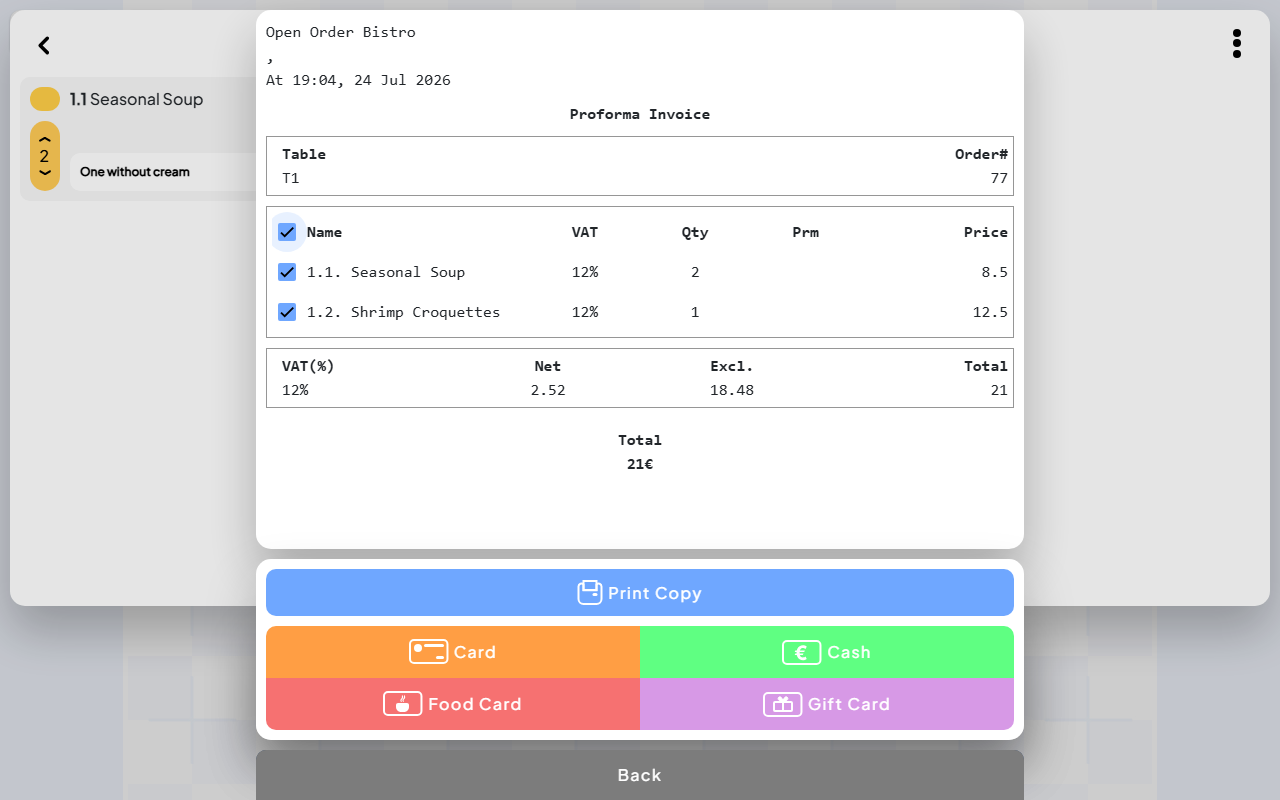
Two soups and a portion of shrimp croquettes appear on a table’s bill. Before taking payment, staff need to confirm the items, explain the total and know which order they are closing. Restaurant billing software is useful when those details stay connected.
Open Order by Jenius Tech includes an itemized checkout view, payment choices, printing and order history. The real screenshot in this guide is labelled Proforma Invoice: it shows a bill for review, rather than proving that a final fiscal invoice has been issued.
Review the bill with the guest
Staff can explain an itemized bill before continuing through payment.
The captured Open Order bill shows the table, order number, item names, quantities, prices and VAT totals. Item selection controls appear beside the ordered dishes. Staff can review what is included before continuing with payment.
Use the guest’s question as the starting point. If they ask about the two soups, check the quantity and price on that order. If an item is disputed, resolve it before recording the payment rather than hoping to correct the explanation later.
A clear order reference also helps another member of staff continue checkout without starting the conversation again.
Follow the payment choices deliberately
The screenshot presents Card, Cash, Food Card and Gift Card choices. These are visible payment categories in the interface. Their presence does not establish the supported terminal, payment provider or processing arrangement for a particular restaurant.
During setup, walk through the methods you actually accept. Confirm what staff must do at the payment device, what they record in Open Order and how they verify completion before the guest leaves.
When a bill is shared, test your intended item selection and settlement procedure with Jenius Tech. Do not assume every form of equal splitting, partial payment or card-terminal connection from one screenshot.
Make printing part of the handoff
Open Order’s checkout screen includes a Print Copy action. Decide when staff provide a copy, how they check the result and what to do if printing is unavailable. Confirm the printer setup with the actual equipment you intend to use.
Explain the document clearly to the guest. The captured proforma bill is a review document. Confirm the final receipt or invoicing arrangement appropriate to your restaurant during onboarding.
This avoids treating a familiar-looking printout as evidence of a capability that has not been checked.
Find the order after checkout
Staff can locate a past order when a guest or manager has a follow-up question.
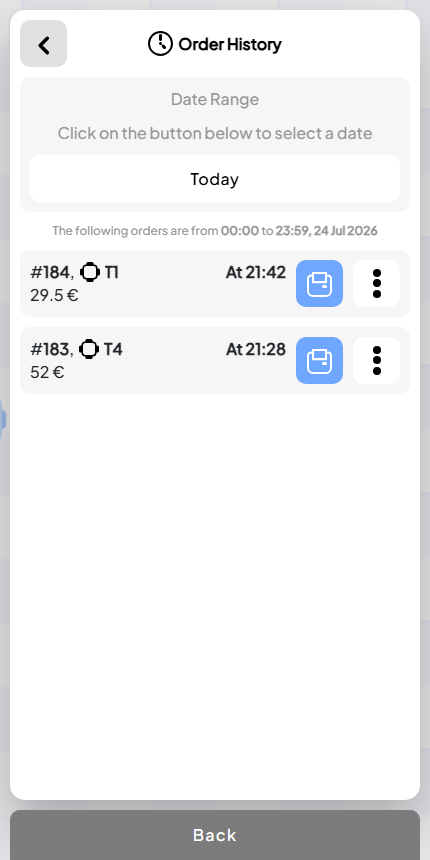
The Open Order Order History screen groups orders by a selected date range and shows order numbers, tables, times and totals. That makes it useful when a guest returns with a question or a manager reviews an unexpected amount.
Start with the date and table, then compare the order number and total. Open the relevant order rather than changing another table’s current bill. Agree which staff member handles any follow-up requiring a correction.
For daily review, compare the relevant orders with the Accounting Report using the same reporting period.
A restaurant checkout training checklist
Identify the correct table and order before presenting the bill.
Review dish names, quantities and the total with the guest.
Resolve questions before selecting a payment category.
Follow the agreed payment-device and recording procedure.
Confirm the completion state before moving to the next table.
Provide the appropriate copy and know how to find the order later.
Does Open Order’s Card button prove card processing is integrated?
No. It shows a payment choice. Confirm the exact terminal and processing workflow for your setup before relying on an integration.
Can a manager find a past bill?
Order History provides dated order entries with references, tables and totals. Use that view to locate the order and inspect the relevant detail.
How should I evaluate the checkout workflow?
Use a realistic table order and complete the sequence with the staff, payment arrangement and printer you plan to use. Explore the real Open Order screens, then contact Jenius Tech to discuss the setup.