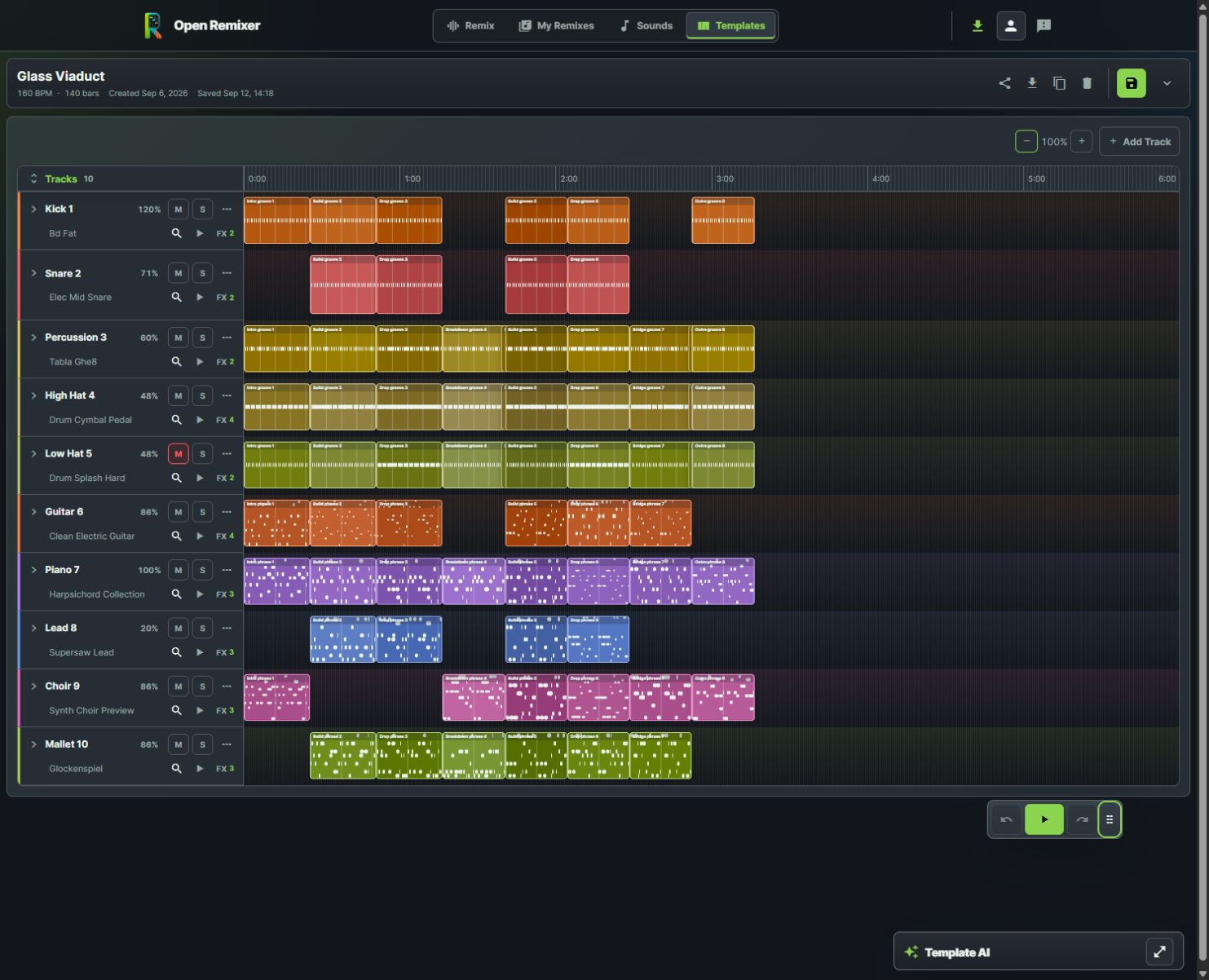
A listening checklist for turning an experiment into a usable audio file without losing the decisions you want to revisit.
Jenius Tech SRL
To export a music remix confidently, listen to the full version first, check its boundaries, choose a format available in your workflow and play the downloaded file outside the app. A successful download is the last step, not the only quality check.
Open Remixer has separate export paths for remixes and template arrangements. This guide explains what to review and what the current template quality choices actually mean.
Check more than the loudest section
Start at the beginning and listen without skipping the intro. Check whether the first sound arrives intentionally, whether the main phrase is recognizable and whether the ending includes the effect tail you expect.
Then inspect a transition into and out of the busiest passage. Overlapping bass, percussion, leads and reverb can sound clear individually but become crowded together.
Listen for accidental silence or abrupt starts.
Check that the lead or vocal remains readable.
Compare kick and bass at a comfortable volume.
Listen for unwanted distortion at the strongest passage.
Check the last sound and the remaining tail.
Compare versions fairly
Musicians can revisit the arrangement controls when a listening comparison reveals a specific problem.
Use the same passage and similar playback levels for each version. A louder render can feel more exciting even when its balance is worse. Choose the result that supports the musical idea rather than whichever sounds biggest on the first few seconds.
Keep notes brief and actionable: “bass masks the lead in the peak” is more useful than “version two feels wrong.” In the editable template, use lane volume, mute, solo, sound choices or effects to address that observation.
Choose the export path you actually used
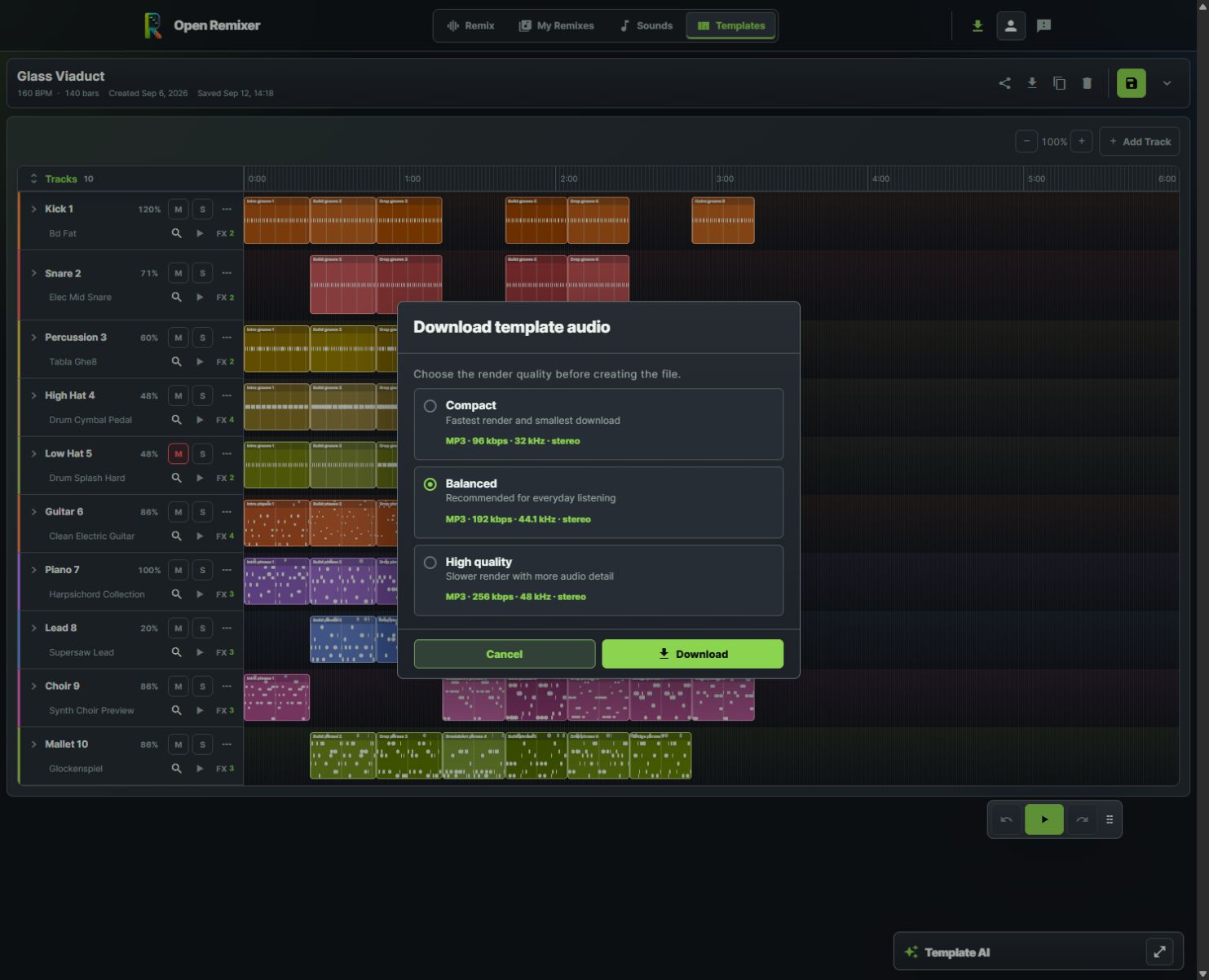
The live template dialog makes MP3 quality choices visible before rendering.
The remix workspace supports MP3 and WAV output. The template editor’s current Download Template Audio dialog offers three MP3 presets:
Compact: 96 kbps at 32 kHz, for a smaller file and quicker render.
Balanced: 192 kbps at 44.1 kHz, the everyday listening option shown in the app.
High quality: 256 kbps at 48 kHz, with a larger render and more audio detail.
These are the choices shown for template audio, not a claim that every path exports every format. Match the output to the receiving service’s requirements. Higher encoding quality does not repair distortion or missing detail already present in the source.
Keep the editable work and the rendered file
Save your template when you want to return to its lanes and blocks. An MP3 is a rendered audio result; it does not preserve editable controls in the way a saved template does.
After downloading, play the file in another player and check its duration, opening, strongest passage and ending. Name versions clearly so a review copy does not get mistaken for the final one.
Can I download a template as WAV?
The template download dialog reviewed for this guide offers MP3 quality presets. WAV is available in the separate remix workspace.
Should I always use the largest preset?
Choose around your purpose and destination requirements. For a quick review, a smaller MP3 may be enough.
Why listen after downloading?
It verifies the actual artifact you will share, including its beginning, duration and end.